TL;DR - What You'll Build
In this hands-on tutorial, you'll design and order a real PCB - a 555 timer LED flasher. The complete workflow: EasyEDA schematic (30 min) → PCB layout (45 min) → order from JLCPCB ($2-5 for 5 boards). Total project cost under $10 including components.
Prerequisites: Basic electronics knowledge (resistors, capacitors, ICs). No prior PCB design experience needed.
Introduction
You've read about PCB design theory. You've watched videos. Now it's time to actually build something. This tutorial takes you from zero to a manufactured PCB, step by step, with a real project you can hold in your hands.
Unlike theoretical guides, we're building a complete, working circuit - a 555 timer LED flasher. It's simple enough to complete in an afternoon, but teaches all the essential PCB design skills you'll use in every future project.
By the end of this tutorial, you'll have:
- Designed a schematic from scratch in EasyEDA
- Created a PCB layout with proper trace routing
- Generated manufacturing files (Gerbers)
- Ordered real boards from JLCPCB
- Assembled and tested your first PCB
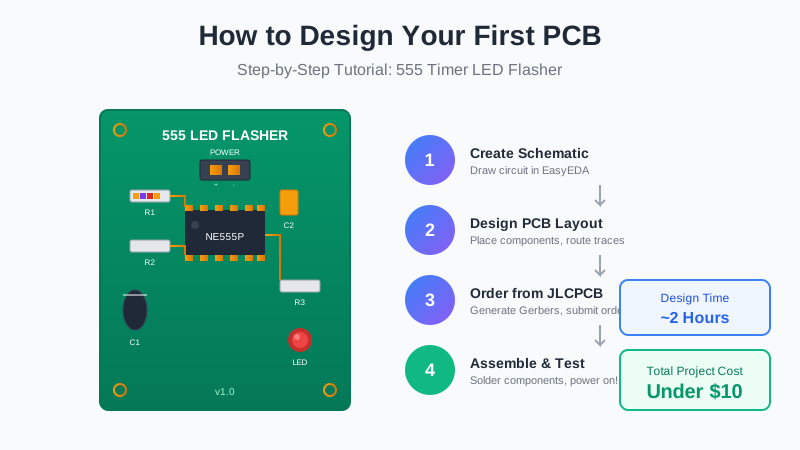
What We'll Build
Our project is a 555 Timer LED Flasher - a classic beginner circuit that blinks an LED at an adjustable rate. It's perfect for learning because:
- Simple schematic: Only 8 components total
- Clear functionality: LED blinks = it works!
- All through-hole parts: Easy to solder by hand
- JLCPCB basic parts: Cheap and readily available
- Real-world application: Foundation for timers, oscillators, PWM
Project Requirements
Our LED flasher will have these specifications:
- Power input: 5-12V DC (USB power bank compatible)
- Flash rate: Approximately 1-2 Hz (adjustable)
- Board size: 30mm x 40mm (credit card size)
- Mounting: 3mm holes for standoffs
- Components: All through-hole for easy assembly
Tools Needed
Software (Free)
- ✓EasyEDA - Web-based PCB design tool (free account)
- ✓Web browser - Chrome, Firefox, or Edge
For Assembly
- •Soldering iron (15-30W with fine tip)
- •Solder wire (0.8mm lead-free recommended)
- •Wire cutters / flush cutters
- •Multimeter (for testing)
- •5-12V power supply or USB power bank
Step 1: Create the Schematic
The schematic is your circuit's blueprint. We'll draw the 555 timer circuit in EasyEDA's schematic editor, then convert it to a PCB layout.
Start a New Project
- Go to easyeda.com and sign in (create a free account if needed)
- Click File → New → Project
- Name it "555-LED-Flasher"
- Click File → New → Schematic to create a schematic sheet
Add Components
Now we'll add each component to the schematic. Use the search bar (keyboard shortcut: Shift+F) to find parts in EasyEDA's library.
Pro Tip: Search for "JLCPCB" parts when possible - they're pre-verified for manufacturing and often cheaper. Look for the "LCSC" part number (e.g., C84376).
Search for and place these components:
| Component | Value | EasyEDA Search | LCSC Part# |
|---|---|---|---|
| U1 - 555 Timer IC | NE555P | "NE555P DIP-8" | C46749 |
| R1 - Resistor | 1kΩ | "1k resistor through hole" | C58607 |
| R2 - Resistor | 47kΩ | "47k resistor through hole" | C58342 |
| R3 - LED Resistor | 330Ω | "330 resistor through hole" | C58634 |
| C1 - Capacitor | 10µF | "10uF electrolytic through hole" | C43347 |
| C2 - Capacitor | 100nF | "100nF ceramic through hole" | C107108 |
| D1 - LED | Red 5mm | "LED red 5mm through hole" | C84774 |
| J1 - Power Connector | 2-pin header | "header 2.54mm 2pin" | C49257 |
Wire the Circuit
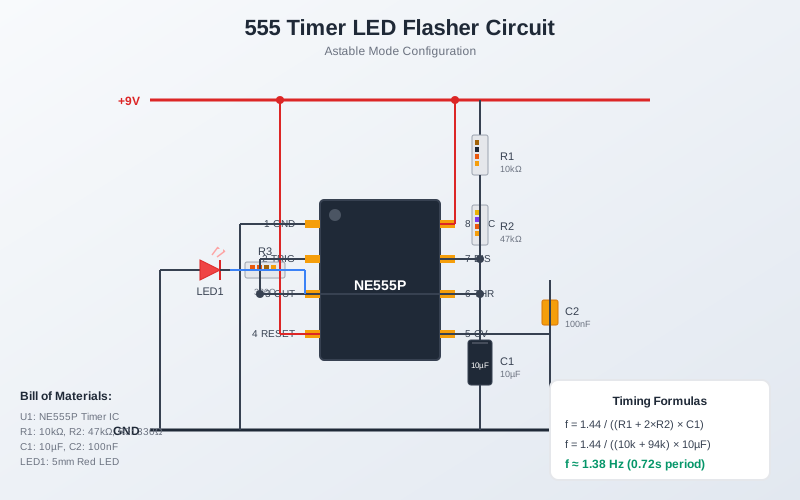
Now connect the components according to the 555 astable configuration:
- 555 Timer Connections:
- Pin 1 (GND) → Ground
- Pin 2 (TRIGGER) → Pin 6 (THRESHOLD) - connect together
- Pin 3 (OUTPUT) → R3 → LED anode
- Pin 4 (RESET) → VCC (keeps timer running)
- Pin 5 (CONTROL) → C2 → Ground (noise filtering)
- Pin 6 (THRESHOLD) → C1 → Ground
- Pin 7 (DISCHARGE) → R2 → Pin 6
- Pin 8 (VCC) → Power supply (+)
- Timing Circuit:
- R1 connects VCC to Pin 7
- R2 connects Pin 7 to Pins 2/6
- C1 connects Pins 2/6 to Ground
- LED Circuit:
- LED cathode (flat side) → Ground
Use the Wire tool (keyboard: W) to draw connections. Click to start a wire, click again to add corners, and click on a pin to complete the connection.
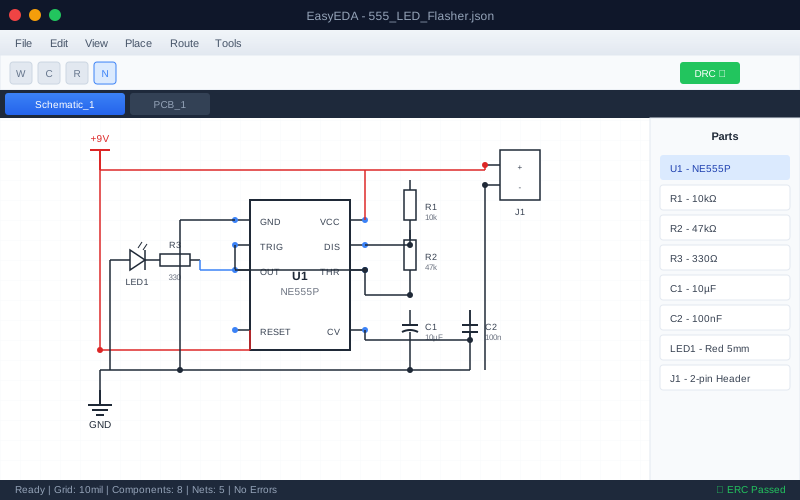
Add Net Labels
Net labels make your schematic clearer and help during PCB layout. Add these labels:
VCC- Power supply positiveGND- Ground
Press N or use Place → Net Label, type the label name, and place it on the wire.
Run Electrical Rule Check
Before moving to PCB layout, verify your schematic has no errors:
- Click Design → Check ERC (or press
Ctrl+Shift+E) - Fix any errors shown (common issues: unconnected pins, missing power symbols)
- Warnings about "unconnected pins" on unused 555 pins are OK
Checkpoint: Your schematic should show 8 components, all connected with no ERC errors. Save your project (Ctrl+S) before proceeding!
Step 2: Create the PCB Layout
Now we'll convert the schematic into a physical board design. This is where your circuit becomes real!
Convert Schematic to PCB
- In the schematic editor, click Design → Convert to PCB
- EasyEDA creates a new PCB file with all your components
- Components appear clustered together with "ratsnest" lines showing connections
Set Board Outline
First, define the physical board size:
- Select the Board Outline layer (purple) in the layers panel
- Draw a rectangle: 30mm wide × 40mm tall
- Or use Tools → Set Board Outline and enter dimensions
Why this size? 30×40mm fits comfortably in your hand, allows room for mounting holes, and stays under JLCPCB's 100×100mm minimum pricing tier (~$2 for 5 boards).
Place Components
Component placement is crucial for a good PCB. Follow these guidelines:
- Place the 555 IC first - it's the central component
- Position it in the center-left of the board
- Pin 1 (marked with dot) should be at top-left
- Group related components:
- Timing components (R1, R2, C1) near pins 6/7
- Bypass capacitor (C2) near pin 5
- LED and R3 near pin 3 (output)
- Place connectors at board edge:
- Power connector (J1) at the top or bottom edge
- Leave space for mounting holes in corners
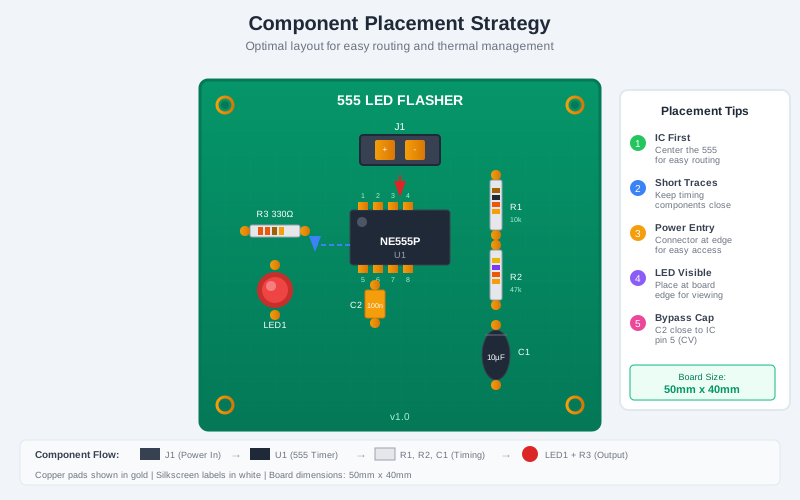
Placement Tips:
• Rotate components with R key for better routing
• Use M to move components precisely
• The ratsnest lines show you which pins need to connect - shorter lines = easier routing
Step 3: Route the Traces
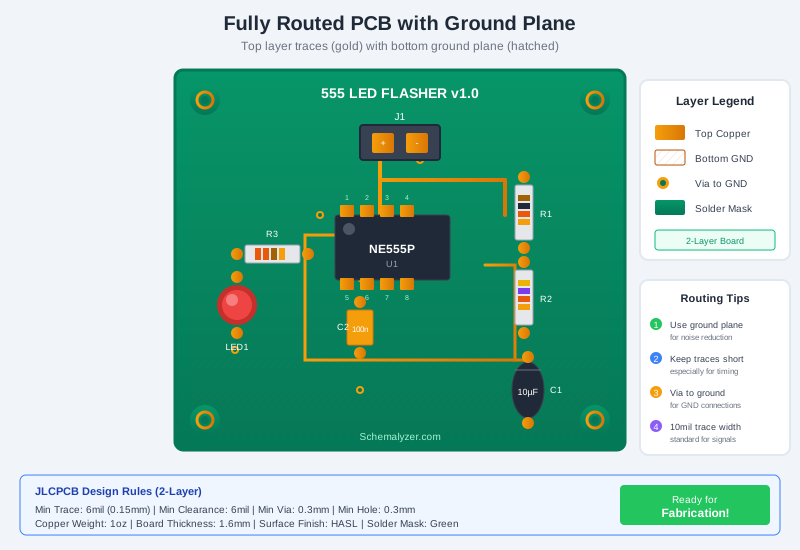
Routing turns those ratsnest lines into actual copper traces. For this simple board, we'll route everything on the top layer with a ground plane on the bottom.
Routing Basics
- Trace width: Use 0.25mm (10 mil) for signals, 0.5mm (20 mil) for power
- Via size: 0.3mm hole, 0.6mm pad (EasyEDA default is fine)
- Clearance: Keep at least 0.2mm between traces
- Angles: Use 45° angles, not 90° (better signal integrity, easier manufacturing)
Route Power Traces First
Always route power (VCC) and ground first:
- Select the Top Layer (red)
- Press
Wfor wire tool - Set trace width to 0.5mm in the properties panel
- Route VCC from J1 to all VCC pins (555 pin 4, pin 8, R1)
- We'll handle GND with a ground plane later
Route Signal Traces
Now route the remaining connections:
- Set trace width to 0.25mm for signal traces
- Route the timing circuit: R1 → 555 pin 7 → R2 → 555 pins 2/6
- Route C1 from pins 2/6 to ground pad area
- Route C2 from pin 5 to ground pad area
- Route the output: 555 pin 3 → R3 → LED → ground pad area
Routing Shortcuts
W- Start routingShift+W- Change routing layerV- Place via (to change layers)Spacebar- Toggle routing angle (45°/90°)Esc- Cancel current routeDelete- Remove selected trace
Add Ground Plane
A ground plane (copper pour) on the bottom layer provides excellent grounding and electromagnetic shielding. For our simple board, it also means fewer traces to route!
- Select the Bottom Layer (blue)
- Click Tools → Copper Area or press
Shift+P - Draw a rectangle covering the entire board outline
- In the properties, set the Net to GND
- Click Rebuild Copper Area to fill the plane
The ground plane will automatically connect to all GND pads through thermal relief patterns.
Step 4: Finishing Touches
Add Silkscreen Labels
Silkscreen text helps during assembly. Add these labels:
- Board title: "555 LED Flasher" at the top
- Version: "v1.0"
- Polarity markers: "+" next to positive power pin
- Your name/website (optional but fun!)
Select the Top Silk Layer and use Place → Text to add labels. Use 1mm text height for readability.
Add Mounting Holes
Mounting holes let you attach the board to an enclosure or standoffs:
- Search for "mounting hole 3mm" in the library
- Place one in each corner, 3mm from the edges
- Connect to GND net for shielding (optional)
Run Design Rule Check
The DRC ensures your board is manufacturable:
- Click Design → Design Rule Check (or
Ctrl+Shift+D) - Use JLCPCB's design rules (loaded by default in EasyEDA)
- Fix any errors - common issues:
- Clearance violations: Traces too close together
- Unrouted nets: Missed connections
- Copper/outline conflicts: Traces too close to board edge
Checkpoint: DRC should pass with 0 errors. A few warnings about silkscreen on pads are usually OK. Save your project!
Step 5: Order Your PCB
Time to make it real! We'll generate manufacturing files and order from JLCPCB.
Generate Gerber Files
Gerber files are the industry-standard format for PCB manufacturing:
- Click Fabrication → PCB Fabrication File (Gerber)
- Review the preview - all layers should look correct
- Click Generate Gerber to download a ZIP file
EasyEDA Shortcut: Since EasyEDA is made by JLCPCB, you can click Fabrication → Order at JLCPCB to send your design directly without downloading Gerbers. The files are automatically optimized for their manufacturing process.
Order from JLCPCB
- Go to jlcpcb.com
- Click Order Now → Add Gerber file
- Upload your Gerber ZIP file
- Configure options:
- Base Material: FR-4
- Layers: 2
- Dimensions: Auto-detected from Gerbers
- PCB Qty: 5 (minimum, usually cheapest)
- PCB Color: Green (cheapest) or your preference
- Surface Finish: HASL (lead-free)
- Copper Weight: 1 oz
- Review the PCB preview to ensure it looks correct
- Add to cart and checkout
Typical cost: $2-5 for 5 boards + $2-15 shipping (depending on speed). Boards usually arrive in 5-14 days.
BOM and Parts List
While waiting for boards, order components from LCSC or your preferred supplier:
| Qty | Component | Value | LCSC# | ~Price/ea |
|---|---|---|---|---|
| 1 | 555 Timer IC | NE555P | C46749 | $0.15 |
| 1 | Resistor | 1kΩ | C58607 | $0.01 |
| 1 | Resistor | 47kΩ | C58342 | $0.01 |
| 1 | Resistor | 330Ω | C58634 | $0.01 |
| 1 | Electrolytic Cap | 10µF | C43347 | $0.02 |
| 1 | Ceramic Cap | 100nF | C107108 | $0.01 |
| 1 | LED 5mm | Red | C84774 | $0.02 |
| 1 | Pin Header | 2-pin | C49257 | $0.03 |
| Total per board | ~$0.26 | |||
Step 6: Assemble Your Board
When your boards arrive, it's time to solder! Through-hole components are beginner-friendly - if you can use a pencil, you can solder.
Soldering Tips for Beginners
- Work from lowest to tallest:
- First: Resistors (R1, R2, R3)
- Second: Ceramic capacitor (C2)
- Third: IC socket (optional but recommended for U1)
- Fourth: Electrolytic capacitor (C1) - watch polarity!
- Fifth: LED (D1) - watch polarity!
- Last: Pin header (J1)
- Polarity matters:
- Electrolytic cap: Long leg = positive, stripe = negative
- LED: Long leg = anode (+), flat side = cathode (-)
- 555 IC: Notch or dot indicates Pin 1
- Soldering technique:
- Heat the pad AND lead together for 2-3 seconds
- Apply solder to the joint, not the iron
- A good joint looks like a shiny volcano
- Let cool before moving the component
Testing Your Board
- Visual inspection: Look for solder bridges, cold joints, or missing connections
- Continuity check: Use a multimeter to verify:
- No short between VCC and GND
- VCC reaches all power pins
- GND reaches all ground pins
- Power on:
- Connect 5-12V power supply (USB power bank works great)
- Positive to VCC, negative to GND
- LED should start blinking!
Success! If your LED is blinking at about 1-2 Hz, congratulations - you've designed, ordered, and assembled your first PCB!
Troubleshooting Common Issues
LED doesn't light at all
- • Check power supply polarity
- • Verify LED orientation (long leg to positive)
- • Check for solder bridges or cold joints
- • Test LED separately with a battery and resistor
LED stays on (doesn't blink)
- • Check 555 pin orientation (notch/dot = pin 1)
- • Verify C1 (timing capacitor) is connected
- • Ensure pins 2 and 6 are connected together
- • Try a different 555 IC
Blink rate is wrong
- • Double-check resistor values (read color bands)
- • Verify capacitor value (10µF)
- • Try different R2 value to adjust frequency
- • Formula: f ≈ 1.44 / ((R1 + 2×R2) × C1)
Board gets hot
- • Immediately disconnect power!
- • Check for solder bridges (shorts)
- • Verify no traces are shorted to ground plane
- • Check component orientation
Next Projects to Try
Now that you've completed your first PCB, try these progressively more challenging projects:
- RGB LED Controller - Add a potentiometer to control LED brightness with PWM
- USB-Powered LED Strip Driver - Learn about MOSFETs and higher currents
- Arduino Nano Clone - Build your own microcontroller board
- ESP32 Development Board - WiFi-enabled IoT project with SMD components
Learn More: Check out our guides on PCB Design Fundamentals, PCB Layout Best Practices, and ESP32 Hardware Design.
FAQ
How much does it cost to make a PCB?
For simple boards like this project: $2-5 for 5 boards from JLCPCB, plus $0.25-0.50 per board in components, plus $2-15 shipping. Total under $10 for your first project.
Can I use KiCad instead of EasyEDA?
Absolutely! The workflow is similar. Our EasyEDA vs KiCad guide covers the differences. KiCad is more powerful but has a steeper learning curve.
Why use through-hole components?
Through-hole components are much easier to solder by hand and more forgiving of mistakes. Once comfortable, you can move to surface-mount (SMD) components which are smaller and enable more compact designs.
What if I make a mistake in my design?
That's part of learning! At $2-5 for 5 boards, mistakes are cheap. Common fixes: cut traces with a knife, add jumper wires, or just order a corrected revision. Most professional designers go through multiple revisions.
How do I change the blink speed?
The frequency is determined by R1, R2, and C1. To blink faster, decrease R2 or C1. To blink slower, increase them. The formula is: f ≈ 1.44 / ((R1 + 2×R2) × C1). With R1=1k, R2=47k, C1=10µF, frequency ≈ 1.5 Hz.
Can I use JLCPCB assembly service?
Yes! For SMD boards, JLCPCB's assembly service is very cost-effective. For this through-hole project, hand soldering is easier and gives you valuable practice. See our JLCPCB Assembly Guide.
Related Articles
PCB Design for Beginners: Complete 2025 Guide
Learn the fundamentals of PCB design, terminology, and best practices.
Complete EasyEDA Tutorial (2025)
Master EasyEDA with this comprehensive guide from schematic to PCB.
PCB Layout Best Practices: 25 Essential Rules
Professional layout techniques for better performing boards.
JLCPCB Assembly: Complete Guide
Learn how to use JLCPCB's SMT assembly service for your projects.