Introduction to JLCPCB Assembly
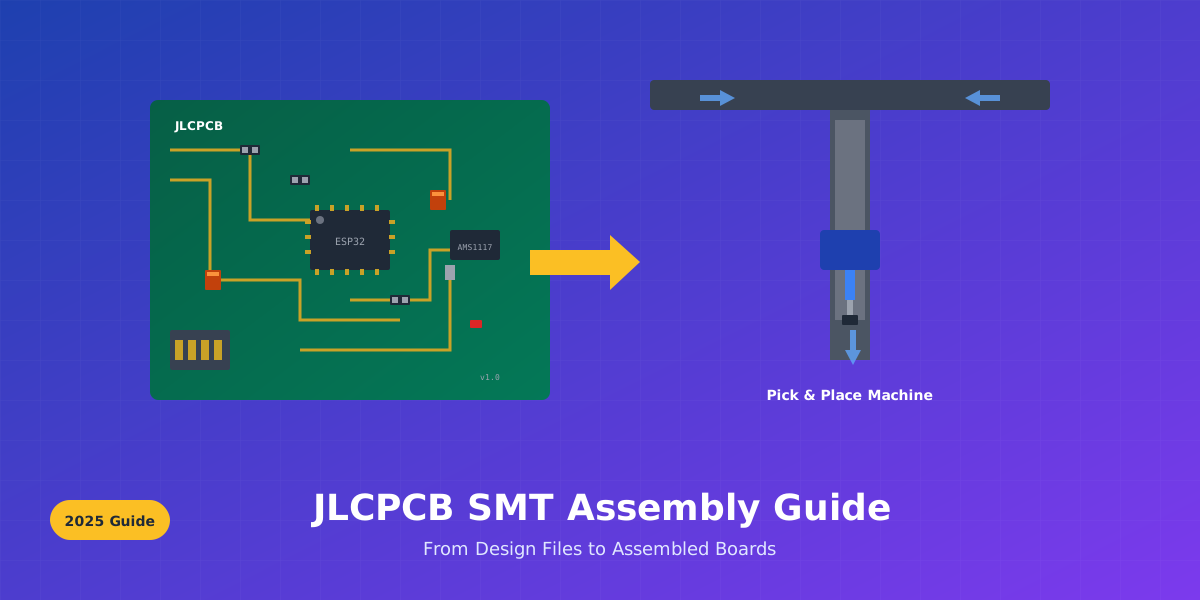
JLCPCB has revolutionized the PCB manufacturing industry by offering affordable SMT (Surface Mount Technology) assembly services that make professional PCB production accessible to hobbyists, startups, and established companies alike. With their integrated assembly service, you can go from design to fully assembled boards in just a few days.
This comprehensive guide covers everything you need to know about using JLCPCB's assembly service, from preparing your BOM and CPL files to optimizing costs and avoiding common mistakes. Whether you're ordering your first assembled board or looking to streamline your production workflow, this guide will help you achieve professional results.
Key Benefits of JLCPCB Assembly
- Low setup fees starting at $8
- Access to 300,000+ components
- 90% of orders completed within 24-48 hours
- Integrated ordering with PCB fabrication
- Support for both SMT and through-hole assembly
Pricing Breakdown
Understanding JLCPCB's pricing structure is essential for budgeting your projects. The assembly cost consists of several components:
| Cost Item | Price | Notes |
|---|---|---|
| Setup Fee | $8.00 | One-time per order |
| Stencil | $1.50 | Required for SMT assembly |
| SMT Assembly | $0.0017/joint | Per solder joint |
| Hand Soldering | $3.50 | Labor fee for THT components |
| Manual Assembly | $0.0173/joint | Per manual solder joint |
| Extended Parts Fee | $3.00/type | Per unique extended component |
Basic vs Extended Components
JLCPCB categorizes components into two main categories that significantly affect your assembly costs:
Basic Components
~698 frequently used parts pre-loaded on machines. No additional loading fee.
- Common resistors (0402, 0603, 0805)
- Standard capacitors
- Common LEDs
- Basic transistors
- Popular voltage regulators
Extended Components
300,000+ specialized parts. $3 loading fee per unique component type.
- Specialized ICs (MCUs, sensors)
- ESP32/STM32 modules
- Uncommon passives
- Specialty connectors
- RF components
Preferred Extended Parts
Some extended parts are marked as "Preferred" and may have reduced or no loading fees during economic assembly. Check the parts library for current classifications.
Cost Optimization Strategies
Here are proven strategies to minimize your assembly costs:
- Prioritize Basic Components: When selecting parts during design, check if a basic component alternative exists. A basic 10K resistor costs nothing extra, while an equivalent extended part adds $3.
- Consolidate Extended Parts: Each unique extended component type adds $3. Using the same MCU across multiple designs reduces per-project costs.
- Use the Parts Search Tool: Search at jlcpcb.com/parts before finalizing your schematic to find in-stock basic alternatives.
- Check Stock Levels: Out-of-stock components cause delays and may require substitutions. Always verify stock before ordering.
- Batch Similar Projects: If you have multiple designs, combining them reduces the $8 setup fee impact per board.
Example Cost Calculation
Project: ESP32 sensor board (5 boards)
- Setup fee: $8.00
- Stencil: $1.50
- SMT joints (50 per board × 5): $0.0017 × 250 = $0.43
- Basic components (resistors, caps): $0
- Extended components (ESP32 module, sensor): $3 × 2 = $6.00
- Component costs: ~$15.00
- Total assembly: ~$31 (+ PCB and shipping)
File Preparation
JLCPCB requires three files for assembly orders: Gerber files (for PCB fabrication), a BOM file (Bill of Materials), and a CPL file (Component Placement List). Getting these files right is crucial for a successful order.
BOM File Format
The Bill of Materials (BOM) tells JLCPCB which components to place on your board. It must be in CSV, XLS, or XLSX format with specific required columns.
Required Columns
| Column | Description | Example |
|---|---|---|
| Comment | Component value and specifications | 100nF 50V X7R |
| Designator | Reference designators (comma-separated) | C1, C2, C5 |
| Footprint | Package type | 0805 |
| LCSC Part # | JLCPCB part number (recommended) | C49678 |
Sample BOM Format
Comment,Designator,Footprint,LCSC Part #
100nF 50V X7R,C1 C2 C5,0805,C49678
10K 1%,R1 R2 R3 R4,0603,C25804
ESP32-WROOM-32E,U1,ESP32-WROOM,C473012
AMS1117-3.3,U2,SOT-223,C6186
Important BOM Tips
- Case sensitivity: JLCPCB converts all designators to uppercase. Avoid using case to distinguish parts.
- DNP components: Mark parts you don't want assembled with "DNP" in a "Customer Supply" column, or remove them entirely.
- Package format: Set the Footprint column to Text format to preserve leading zeros (0603, 0402).
CPL (Pick and Place) File Format
The Component Placement List (CPL) provides exact coordinates and rotation for each component. This file controls where the pick-and-place machine positions each part.
Required Columns
| Column | Description | Example |
|---|---|---|
| Designator | Component reference | U1 |
| Mid X | X coordinate of component center (mm) | 25.4 |
| Mid Y | Y coordinate of component center (mm) | 12.7 |
| Layer | Board side | Top / Bottom |
| Rotation | Degrees counter-clockwise | 90 |
Sample CPL Format
Designator,Mid X,Mid Y,Layer,Rotation
U1,25.4,12.7,Top,0
U2,45.2,12.7,Top,90
C1,28.96,15.24,Top,180
R1,32.5,8.89,Top,270
D1,40.64,20.32,Bottom,0
CPL Coordinate System
- Units: Always use millimeters (mm)
- Origin: Typically bottom-left corner of the board
- Rotation: Positive values = counter-clockwise
- Centroid: Coordinates are component center, not pin 1
Exporting from EasyEDA
EasyEDA has built-in integration with JLCPCB, making file export straightforward:
BOM Export
- Open your PCB or schematic in EasyEDA
- Click the BOM icon in the top toolbar
- Review the component list in the dialog
- Click Export BOM to download
The exported file is named: BOM_[project name]_[date]_[time].csv
Pick and Place Export
- Open your PCB layout in EasyEDA
- Go to Document → Export Pick and Place File
- The "Mirror bottom side coordinates" option is usually not needed
- Click Export to download
The exported file is named: PickAndPlace_[PCB name]_[date]_[time].csv
Pro Tip: Direct Integration
When ordering from EasyEDA, you can place assembly orders directly from the EasyEDA interface. The BOM and CPL files are automatically uploaded to JLCPCB's ordering system, saving time and reducing file format errors.
Exporting from KiCad
KiCad 8 includes improved export options for JLCPCB compatibility:
BOM Export
- In the Schematic Editor, go to Tools → Generate BOM
- Select a BOM plugin that outputs CSV format
- Add LCSC part numbers to your symbol properties for automatic matching
- Run the plugin to generate the BOM file
Position File Export
- In the PCB Editor, go to File → Fabrication Outputs → Component Placement (.pos)
- Select CSV format
- Choose Millimeters for units
- Enable Include footprint references
- Click Generate Position File
KiCad Column Mapping
KiCad exports with column headers like "Ref", "PosX", "PosY". JLCPCB's system can automatically map these, but you may need to rename columns to "Designator", "Mid X", "Mid Y" for perfect compatibility.
Step-by-Step Ordering Process
Follow these steps to place your JLCPCB assembly order:
Upload Gerber Files
Go to jlcpcb.com and click "Order Now". Upload your Gerber ZIP file containing all PCB layers. Configure PCB options (layers, thickness, color, etc.).
Enable SMT Assembly
Toggle the "SMT Assembly" switch. Select which side to assemble (Top, Bottom, or Both). Choose Economic or Standard PCBA service.
Upload BOM and CPL Files
Click "Add BOM file" and select your BOM CSV. Click "Add CPL file" and select your pick-and-place file. The system will automatically match components.
Confirm Component Matching
Review the component matching table. Green checkmarks indicate matched parts. Click on unmatched parts to search and select alternatives. Confirm each component.
Review Placement Preview
Use the visual placement preview to verify component positions and rotations. The red dot indicates pin 1 orientation. Fix any rotation issues before proceeding.
Complete Order
Review the final quote including PCB, assembly, and component costs. Select shipping method and complete payment. You'll receive order updates via email.
Confirm Production Files
Always select the "Confirm production file" option before submitting. The Gerber viewer is for reference only and may not exactly match production output. This option ensures engineers review your files before manufacturing begins.
Component Selection Tips
Choosing the right components during design saves time and money during assembly:
Use LCSC Part Numbers
Every component in JLCPCB's library has a unique LCSC Part Number (format: Cxxxxx). Including this number in your BOM guarantees 100% matching accuracy. You can find these numbers at jlcpcb.com/parts.
Check Stock Before Designing
Before finalizing your schematic, verify that your chosen components are in stock and available in the JLCPCB parts library (not just LCSC). Out-of-stock parts cause delays and may require design changes.
Consider Assembly Availability
Not every LCSC component is available for assembly. Filter by "Assembly" availability when searching. Some parts are LCSC inventory only and cannot be assembled by JLCPCB.
Component Search Workflow
- 1Go to jlcpcb.com/parts and search for your component type
- 2Filter by "Basic Parts" to see low-cost options first
- 3Check stock quantity and "Assembly" availability
- 4Copy the LCSC Part Number (e.g., C49678) to your schematic
- 5Add the part number to your BOM for automatic matching
Fixing Rotation and Position Issues
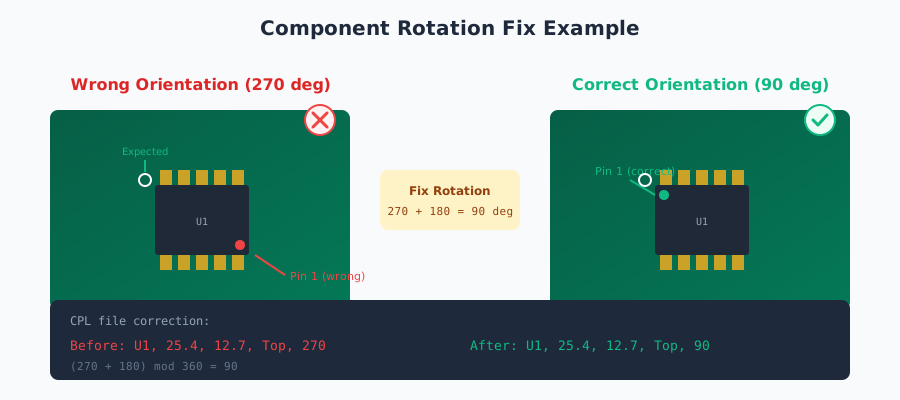
Rotation and position mismatches are the most common issues in PCB assembly. These occur because different EDA tools use different default orientations for components compared to how they appear in tape and reel packaging.
How to Fix Rotation Issues
When a component shows incorrect rotation in the preview:
- Note the current rotation value in your CPL file
- Determine how many degrees the component needs to rotate
- Add the correction to the current value
- If the result exceeds 360, subtract 360 (modulo operation)
- Update the CPL file and re-upload
Rotation calculation example
Current rotation: 270°
Needed correction: +180° (component is flipped)
Calculation: 270 + 180 = 450
Final value: 450 mod 360 = 90°

Update CPL from: D5,15.24,20.32,Top,270
            to: D5,15.24,20.32,Top,90
How to Fix Position Issues
If a component appears offset from its correct position:
- Identify the correct position by looking at another correctly-placed component of the same type
- Adjust the Mid X and/or Mid Y values in the CPL file
- Re-upload and verify in the preview
Position fix example
R2 is offset on X-axis compared to R1

R1 (correct):   R1,28.96,15.24,Top,0
R2 (incorrect): R2,32.00,15.24,Top,0

Fix R2 X position to match R1 alignment:
R2 (fixed):     R2,28.96,18.50,Top,0
Let JLCPCB Engineers Help
If you're unsure about rotation corrections, JLCPCB engineers will review your files and contact you if they detect issues. This adds a small delay but ensures correct assembly. Include a note in your order if you're uncertain about orientations.
Common Mistakes to Avoid
Avoid these frequent mistakes that cause delays, increased costs, or assembly failures:
Not Confirming Components
Components must be explicitly confirmed in the ordering interface. Even if they appear in your BOM, unconfirmed parts will NOT be assembled. Always click the confirm button for each component.
Missing Silkscreen Polarity Marks
JLCPCB uses silkscreen markings to determine component orientation. If your board lacks polarity indicators (dot for pin 1, + for diodes), assembly may be delayed while engineers confirm orientation with you.
Silkscreen vs CPL Mismatch
When silkscreen orientation doesn't match CPL rotation, JLCPCB follows the silkscreen by default. Ensure your CPL file matches your silkscreen layer to avoid unexpected results.
Ordering Out-of-Stock Parts
Always verify stock levels before ordering. Out-of-stock components delay production until they're available or you select alternatives. For urgent orders, choose parts with adequate stock quantities.
Case-Sensitive Designators
JLCPCB converts all designators to uppercase. Using case to distinguish components (like R1 and r1) will cause matching errors. Use unique designator numbers instead.
Tented Vias Covering Pads
In some EDA tools, selecting "tented vias" can accidentally cover component pads with solder mask, making them unsolderable. Verify your solder mask layer before generating Gerbers.
Design Guidelines for Assembly
Follow these guidelines during PCB design to ensure smooth assembly:
Process Edges
For SMT assembly, JLCPCB recommends adding process edges (also called rails) to small or irregularly shaped boards. Recommended specifications:
- Edge width: 5mm minimum
- Tooling holes: 2mm diameter
- Fiducials: 1mm diameter, placed 3.85mm from panel edge
Fiducial Marks
Fiducial marks help the pick-and-place machine align components accurately. While JLCPCB can add fiducials automatically, including them in your design gives you more control over placement accuracy.
Component Clearance
- Maintain minimum 0.3mm clearance between SMD components
- Keep components at least 1mm from board edges
- Provide adequate spacing for rework access
- Avoid placing components under other components
Thermal Relief
Components connected to large copper pours (especially ground planes) should have thermal relief connections to prevent soldering issues during reflow.
DFM Check
JLCPCB runs a Design for Manufacturing (DFM) check on uploaded Gerbers. Review any warnings or errors before proceeding. Common issues include insufficient clearances, missing solder mask openings, and trace width violations.
Turnaround Times and Shipping
JLCPCB offers competitive assembly turnaround times:
| Stage | Typical Time | Notes |
|---|---|---|
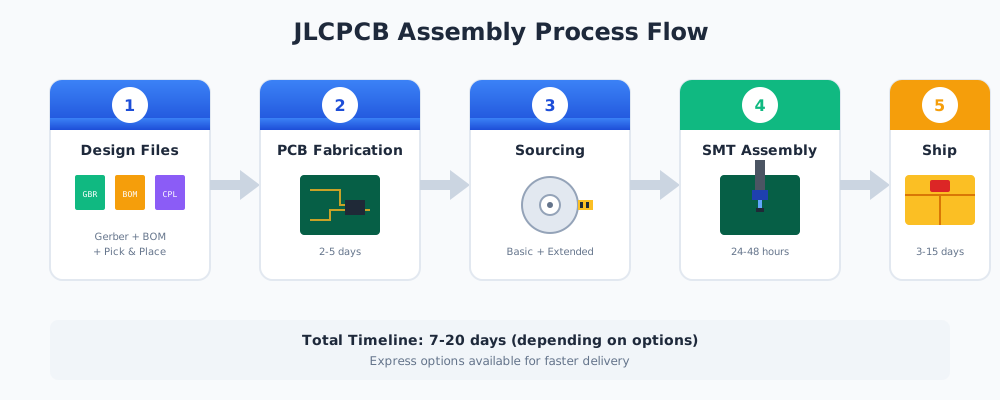
| PCB Fabrication | 2-5 days | Depends on complexity and service level |
| Component Sourcing | 0-3 days | In-stock parts: immediate. Global sourcing: longer |
| SMT Assembly | 24-48 hours | 90% of orders complete within this window |
| Quality Check | 2-4 hours | Visual and electrical inspection |
| Shipping | 3-15 days | Varies by destination and shipping method |
Shipping Options
- DHL/FedEx Express: 3-5 business days (most locations)
- Standard Shipping: 7-15 business days
- Economy Shipping: 15-30 business days
Rush Orders
For time-critical projects, use in-stock components only and select expedited PCB fabrication. This combination can get assembled boards to you in under a week for many locations.
Frequently Asked Questions
Can I get both sides assembled?
Yes, JLCPCB supports double-sided assembly. You'll need to specify which components go on which side in your CPL file's Layer column. Additional setup fees apply for double-sided assembly.
What's the maximum board quantity for Economic PCBA?
Economic PCBA is limited to 30 pieces per single board design. For larger quantities, use panel designs (up to 250x250mm) or switch to Standard PCBA which has no quantity restrictions.
Can JLCPCB assemble through-hole components?
Yes, JLCPCB offers through-hole technology (THT) assembly using wave soldering. There's an additional hand-soldering labor fee of $3.50 plus per-joint costs. THT assembly is available alongside SMT assembly.
Can I supply my own components?
JLCPCB generally does not accept customer-supplied components for their standard assembly service. This is to maintain quality control and ensure component traceability. For specialized needs, contact their support.
Does JLCPCB support BGA components?
Yes, JLCPCB can assemble BGA (Ball Grid Array) components. BGA assembly requires X-ray inspection for quality verification, which may add to the processing time and cost. Ensure your BGA is in their parts library.
What if a component is out of stock?
You have several options: wait for the component to be restocked, select an alternative from JLCPCB's library, use global sourcing (which adds time and cost), or remove the component from your order and hand-solder it later.
Conclusion
JLCPCB's SMT assembly service makes professional PCB manufacturing accessible to everyone from hobbyists to production-scale operations. By following the guidelines in this article, you can:
- Prepare accurate BOM and CPL files that match on the first try
- Optimize costs by choosing basic components when possible
- Avoid common mistakes that cause delays and rework
- Fix rotation and position issues before production
- Design boards that are optimized for automated assembly
With setup fees as low as $8 and 24-48 hour assembly times, there's never been a better time to move from hand-soldering prototypes to professionally assembled boards. Start your next project with confidence, knowing exactly what to expect from the JLCPCB assembly process.
Ready to Order?
Before placing your order, use Schemalyzer to review your schematic for common errors. Our AI-powered analysis helps catch issues before they become expensive manufacturing problems.
Try Schemalyzer Free