
TL;DR
EasyEDA is a free, browser-based PCB design tool perfect for beginners and hobbyists. This tutorial covers everything from creating your first schematic to ordering manufactured PCBs from JLCPCB. Key steps: Create account → Design schematic → Convert to PCB → Route traces → Export Gerber → Order boards.
Introduction
Designing your own printed circuit board (PCB) might seem intimidating, but with the right tools and guidance, anyone can create professional-quality electronics. EasyEDA has emerged as one of the most accessible PCB design platforms, offering a complete workflow from schematic capture to manufacturing—all within your web browser.
In this comprehensive tutorial, you'll learn everything you need to know to design your first PCB using EasyEDA. We'll cover the entire process step-by-step, from creating your account to holding your finished boards in your hands.
What you'll learn:
- Setting up EasyEDA and understanding the interface
- Creating schematics with proper component selection
- Converting schematics to PCB layouts
- Routing traces and adding copper pours
- Running design rule checks (DRC)
- Exporting Gerber files and ordering from JLCPCB
- Advanced tips to speed up your workflow
What is EasyEDA?
EasyEDA is a free Electronic Design Automation (EDA) tool that combines schematic capture, circuit simulation, and PCB layout in a single web-based platform. Developed by JLCPCB (one of the world's largest PCB manufacturers), it offers seamless integration with their manufacturing services.
Key Features of EasyEDA
No license fees, no restrictions on board size or layers
Works on Windows, Mac, Linux, and Chromebooks
Massive library synced with LCSC inventory
Direct integration with JLCPCB manufacturing
EasyEDA Standard vs EasyEDA Pro
EasyEDA offers two versions: the Standard edition (web-based) and the Pro edition (desktop application with advanced features). For most hobbyists and beginners, the Standard edition provides everything you need.
| Feature | Standard (Free) | Pro (Free) |
|---|---|---|
| Platform | Browser + Desktop | Desktop only |
| Max Layers | 6 layers | 32+ layers |
| Advanced Routing | Basic auto-router | Push & shove, differential pairs |
| 3D View | Yes | Yes (enhanced) |
| Best For | Beginners, hobbyists | Advanced users, professionals |
This tutorial uses EasyEDA Standard since it's the most accessible option and sufficient for 99% of hobby projects.
Getting Started
Creating Your Account
Getting started with EasyEDA takes less than a minute. Follow these steps:
- Visit easyeda.com
- Click "Sign Up" in the top right corner
- Enter your email and create a password (or sign up with Google)
- Click "EasyEDA Designer" to launch the editor
Pro Tip: Your EasyEDA account also works on JLCPCB and LCSC, so you can seamlessly order PCBs and components later.
Interface Overview
When you first open EasyEDA, you'll see a clean interface with several key areas:
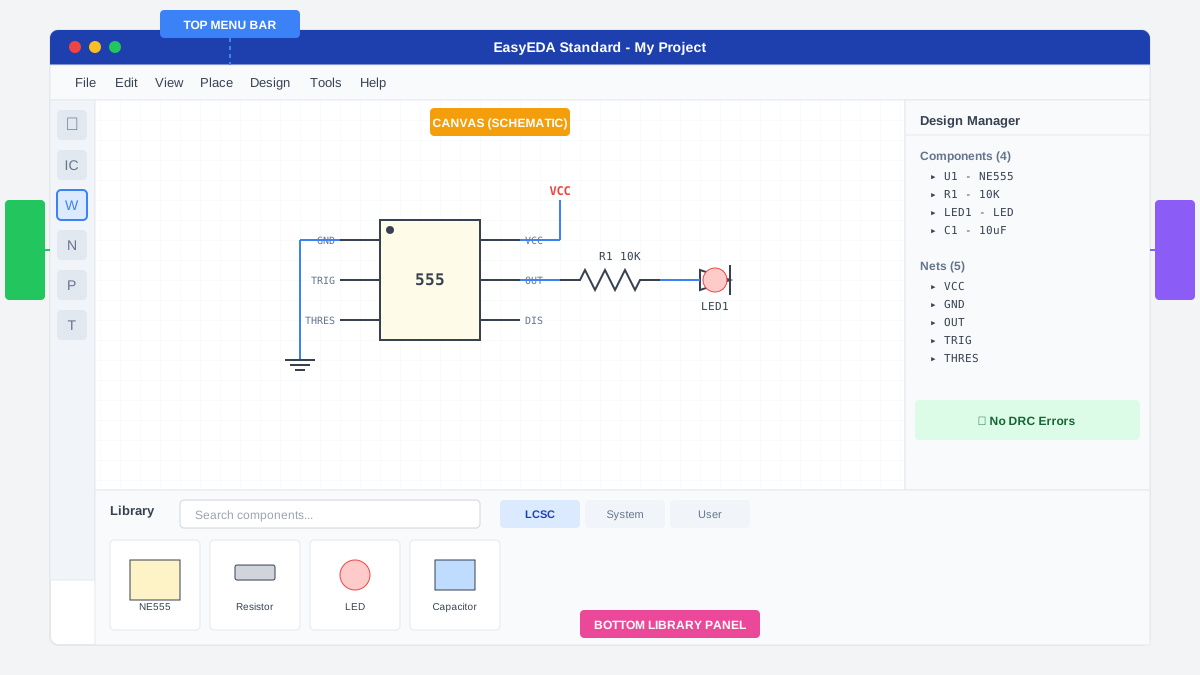
- Top Menu Bar: File operations, design tools, and settings
- Left Toolbar: Quick access to common tools (components, wires, etc.)
- Canvas: Your main working area for schematic/PCB design
- Right Panel: Design Manager showing components, nets, and DRC errors
- Bottom Library Panel: Search and browse components
Schematic Design
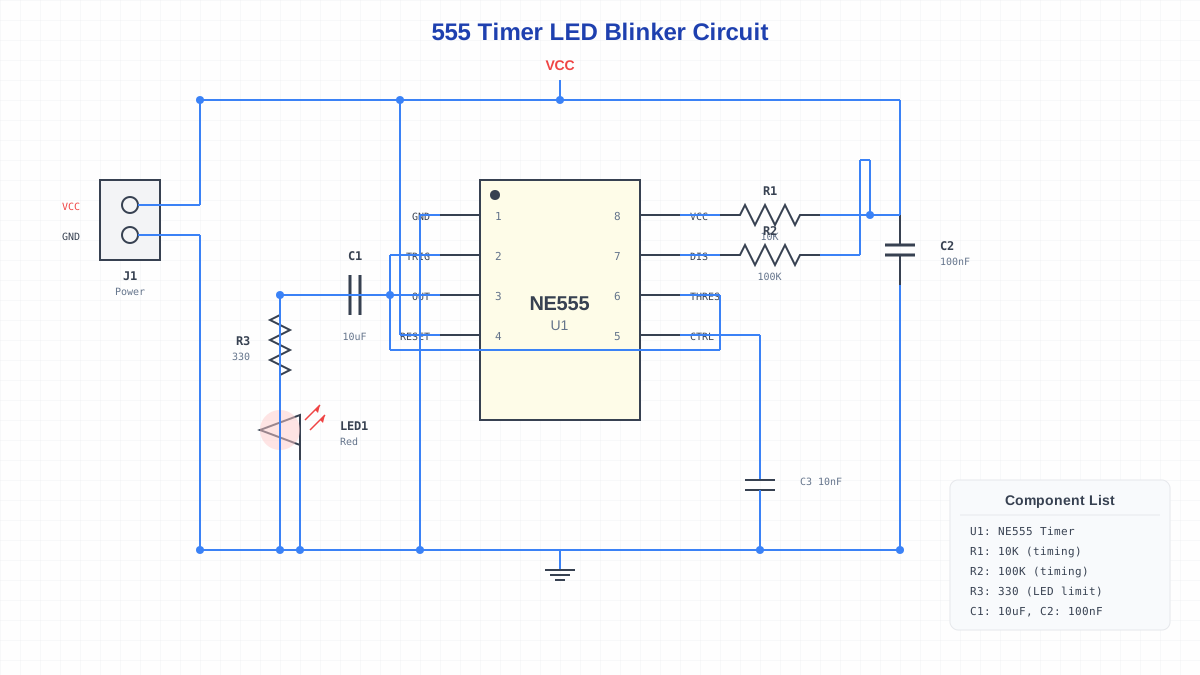
Every PCB starts with a schematic—a visual representation of your circuit's electrical connections. Let's create a simple LED blinker circuit to learn the fundamentals.
Starting a New Project
- Click File → New → Project
- Enter a project name (e.g., "LED-Blinker")
- Click Save
- Right-click on your project and select New → Schematic
A blank schematic canvas will appear, ready for your design.
Finding Components
EasyEDA's library contains over 1 million components synced with LCSC inventory. Here's how to find what you need:
Method 1: Keyboard Shortcut (Recommended)
- Press Shift + F to open the component search
- Type your search term (e.g., "555 timer" or "ATmega328")
- Filter by LCSC Assembled if you want parts available for JLCPCB assembly
- Click on a component to see its details and datasheet
- Click Place to add it to your schematic
Method 2: Library Panel
- Use the Library panel at the bottom of the screen
- Browse categories or search for specific part numbers
- The LCSC tab shows parts available for purchase
Searching by LCSC Part Number: If you know the exact LCSC part number (like C401124), you can search directly for it. This ensures you get a component with verified footprint and availability.
Placing Components
Once you've found your components, placement is simple:
- Click Place in the component dialog
- Click on the canvas where you want the component
- Press R to rotate the component before placing
- Press Esc when done placing
For our LED blinker circuit, place these components:
- 1x NE555 Timer IC
- 2x 10K Resistors (0805 package)
- 1x 100K Resistor (0805 package)
- 1x 10uF Capacitor (0805 package)
- 1x LED (0805 package)
- 1x 330 Ohm Resistor (for LED current limiting)
- 1x 2-pin Header (for power input)
Wiring Connections
Now let's connect the components with wires:
- Press W to activate the Wire tool
- Click on a component pin to start the wire
- Click on intermediate points to add corners (wires route at 90° angles)
- Click on the destination pin to complete the connection
- Press Esc to exit wire mode
Using Net Labels
Net labels connect points without drawing visible wires—essential for clean, readable schematics. They're especially useful for power rails and ground connections.
- Press N or go to Place → Net Label
- Type the net name (e.g., "VCC", "GND", "OUT")
- Place the label on a wire or pin
- Any two points with the same net label are electrically connected
For power connections, use the dedicated power symbols from Place → Power Port:
- VCC/VDD: Positive power rail
- GND: Ground reference
PCB Layout
Once your schematic is complete, it's time to convert it into a physical PCB layout. This is where your circuit becomes a real board.
Converting Schematic to PCB
EasyEDA makes the conversion process simple:
- Open the Design Manager and check for any errors (red warnings)
- Verify all components have assigned footprints in the Footprint Manager
- Click the Convert to PCB icon in the toolbar (or Design → Convert to PCB)
- Select your board dimensions and number of layers (2 layers is standard)
- Click Convert
Your PCB editor will open showing all component footprints outside the board outline, connected by blue "ratsnest" lines showing required connections.
Component Placement
Good component placement is crucial for a successful PCB. Follow these guidelines:
Component Placement Best Practices
- 1.Place connectors first - Position power inputs and outputs at board edges
- 2.Group related components - Keep functionally related parts close together
- 3.Minimize trace crossings - Arrange parts to reduce the number of crossing ratsnest lines
- 4.Leave space for traces - Don't pack components too tightly
- 5.Consider heat - Power components need thermal relief
To move and arrange components:
- Click and drag to move components
- Press R to rotate (hold to see rotation options)
- Press X or Y to flip components
- Use Edit → Align to align multiple components
Routing Traces
Routing is the process of creating copper traces that connect your components. You can route manually or use the auto-router.
Manual Routing (Recommended)
- Press W to activate the track tool
- Click on a pad to start the trace
- Click to add corners (traces route at 45° by default)
- Click on the destination pad to complete the connection
- Use the Layer dropdown to switch between Top and Bottom layers
Trace Width Matters: Use wider traces for power connections (0.5mm+) and thinner traces for signals (0.25mm). Our PCB Trace Width Calculator can help you determine the right width for your current requirements.
Using the Auto-Router
For simple boards, the auto-router can save time:
- Go to Tools → Auto Router
- Configure settings (keep defaults for basic boards)
- Click Run
- Review results and manually fix any issues
Important: The auto-router works best for simple boards. For critical signals, high-speed designs, or power traces, always route manually.
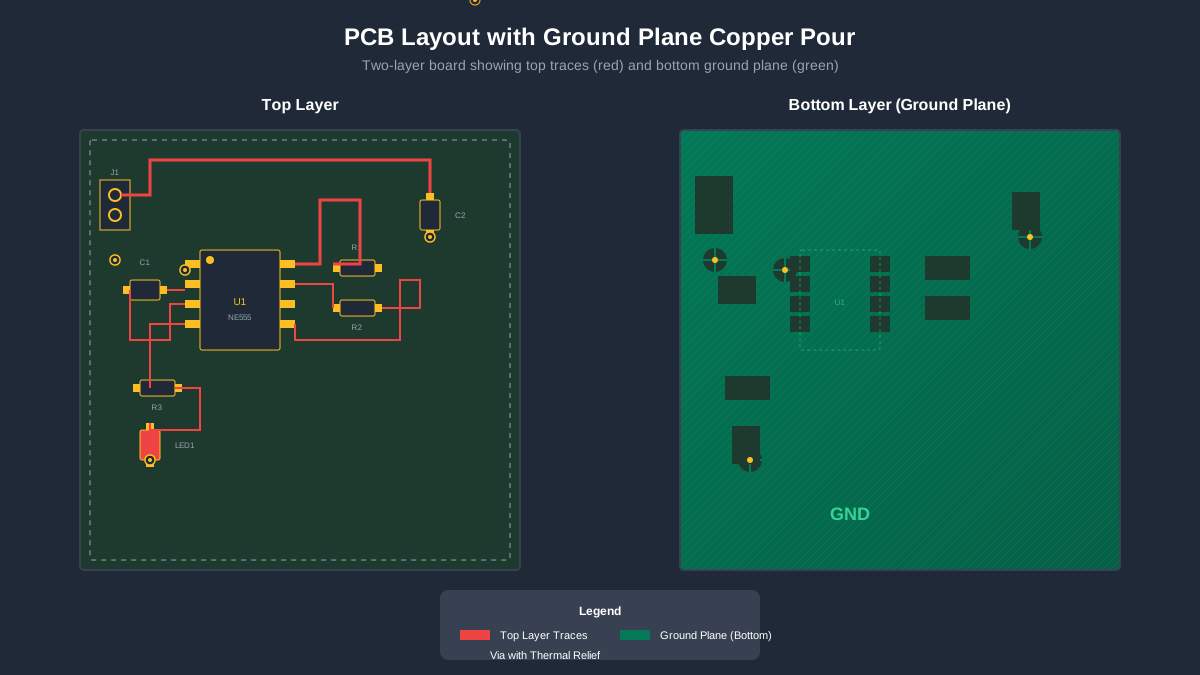
Adding Copper Pour (Ground Plane)
A copper pour fills empty space with copper connected to a net—usually ground. This improves EMI performance and provides better current return paths.
- Go to Tools → Copper Area (or press Shift + P)
- Draw a rectangle around your board outline
- Right-click to finish the outline
- Set the Net to GND
- Set Layer to Bottom (for 2-layer boards)
- Click Rebuild Copper Area or press Shift + B
Design Rule Check (DRC)
Before manufacturing, always run a Design Rule Check to catch potential problems:
- Go to Design → Check DRC (or click the DRC icon)
- Review any errors in the DRC Errors panel
- Click on each error to highlight it on the board
- Fix issues and re-run DRC until you get zero errors
Common DRC errors and fixes:
- Clearance Error: Traces or pads too close together. Move them apart.
- Track Width Error: Trace too thin. Increase width in trace properties.
- Unconnected Net: Missing connection. Route the remaining ratsnest line.
- Via Error: Via too small. Adjust via size in design rules.
Never skip DRC! Manufacturing a board with DRC errors can result in non-functional PCBs, wasted money, and project delays. Always aim for zero errors before ordering.
Manufacturing Your PCB
The moment of truth—let's turn your digital design into real hardware. EasyEDA's integration with JLCPCB makes this process remarkably simple.
Exporting Gerber Files
Gerber files are the industry-standard format for PCB manufacturing. They contain all the information a fab house needs to produce your board.
- Go to Fabrication → PCB Fabrication File (Gerber)
- Review the preview to ensure your board looks correct
- Click Generate Gerber to download the ZIP file
- Alternatively: Click Order at JLCPCB for direct ordering
The Gerber ZIP contains:
*.GTL- Top copper layer*.GBL- Bottom copper layer*.GTS- Top solder mask*.GBS- Bottom solder mask*.GTO- Top silkscreen*.GBO- Bottom silkscreen*.GKO- Board outline*.DRL- Drill file
Ordering from JLCPCB
JLCPCB offers some of the lowest prices in the industry with fast turnaround. Here's how to order:
Option 1: Direct from EasyEDA
- Click Order at JLCPCB in the Gerber export dialog
- You'll be redirected to JLCPCB with your design pre-loaded
- Review and adjust PCB specifications
- Add to cart and complete checkout
Option 2: Manual Upload
- Visit jlcpcb.com
- Click Order Now and upload your Gerber ZIP
- JLCPCB will analyze your files and show a preview
- Configure options (quantity, color, thickness, etc.)
- Add to cart and complete checkout
Recommended JLCPCB Settings for Beginners
- Layers: 2 (most hobby projects)
- Thickness: 1.6mm (standard)
- Solder Mask Color: Green (cheapest & fastest)
- Surface Finish: HASL (lead-free for hand soldering)
- Quantity: 5 pcs (minimum, great for prototypes)
5 PCBs typically cost $2-5 USD + shipping. Allow 1-2 weeks for delivery with standard shipping.
Advanced Tips & Tricks
Now that you know the basics, here are expert tips to speed up your workflow and create better designs.
Essential Keyboard Shortcuts
Mastering shortcuts will dramatically speed up your design process:
| Shortcut | Action |
|---|---|
| Shift + F | Open component search |
| W | Wire/Track tool |
| R | Rotate component |
| M | Measure distance |
| Ctrl + D | Duplicate selection |
| Shift + B | Rebuild copper area |
| Space + Drag | Pan canvas |
| Ctrl + Scroll | Zoom in/out |
Creating Custom Footprints
Sometimes you'll need footprints not available in the library. Here's how to create your own:
- Go to File → New → Footprint
- Use the Pad tool to place SMD or through-hole pads
- Draw the component outline on the TopSilkscreen layer
- Add a Pin 1 indicator (dot or chamfer)
- Save and assign to your schematic symbol
Version Control
EasyEDA automatically saves versions of your design. To access previous versions:
- Go to File → History Versions
- Browse timestamped versions
- Click Restore to revert to a previous version
Export Tip: For important milestones, export your schematic as JSON using File → Export → EasyEDA Source. This creates a backup you can import later or analyze with tools like Schemalyzer.
Common Mistakes to Avoid
Learn from others' mistakes! Here are the most frequent errors beginners make:
1. Skipping the Schematic
Never design a PCB without a schematic first. The schematic is your "source of truth" and ensures all connections are correct. Direct PCB design leads to errors and makes debugging impossible.
2. Ignoring DRC Errors
Every DRC error has the potential to make your board non-functional. Fix all errors before ordering—no exceptions.
3. Wrong Footprints
Always verify footprints match your actual components. Check the datasheet dimensions against EasyEDA's footprint preview before ordering. A wrong footprint means unusable boards.
4. Thin Power Traces
Power traces need to carry more current than signal traces. Use wider traces (0.5mm+) for VCC and GND connections. Thin traces can overheat or add unwanted resistance.
5. No Bypass Capacitors
Every IC needs bypass capacitors (typically 100nF) placed as close as possible to power pins. Missing bypass caps cause noise, instability, and mysterious failures.
Frequently Asked Questions
Is EasyEDA really free?
Yes! EasyEDA Standard and Pro are both completely free with no feature restrictions. JLCPCB provides EasyEDA as a service to streamline their PCB ordering process—they make money when you order boards, not from software licenses.
Can I use EasyEDA offline?
EasyEDA Standard has a desktop client that works partially offline, though library search requires internet. EasyEDA Pro is a fully offline desktop application once installed.
How does EasyEDA compare to KiCad?
Both are excellent free options. EasyEDA is easier to learn with better component libraries and JLCPCB integration. KiCad offers more advanced features and is fully open-source. For beginners, we recommend EasyEDA; for complex projects or if you prefer open-source, consider KiCad.
Can I export designs to other tools?
Yes! EasyEDA supports export to Altium Designer format, and the community has tools for KiCad conversion. You can also export schematics as JSON, PDF, or SVG.
Do I have to order from JLCPCB?
No! While EasyEDA integrates seamlessly with JLCPCB, you can export standard Gerber files and order from any PCB manufacturer worldwide (PCBWay, OSH Park, Seeed Studio, etc.).
Conclusion
Congratulations! You now have the knowledge to design PCBs from scratch using EasyEDA. Let's recap what you've learned:
- Setting up EasyEDA and navigating the interface
- Creating schematics with components from the LCSC library
- Converting schematics to PCB layouts
- Placing components and routing traces
- Adding copper pours and running DRC
- Exporting Gerber files and ordering from JLCPCB
The best way to learn is by doing. Start with a simple project (like the LED blinker we discussed), and gradually take on more complex designs as you gain confidence.
Ready to Analyze Your EasyEDA Designs?
Schemalyzer uses AI to automatically review your EasyEDA schematics, catching errors and providing insights before you order PCBs.
Next Steps
Continue your learning journey with these resources:
- EasyEDA vs KiCad: Which Should You Choose?
- PCB Design for Beginners: Complete Guide
- PCB Trace Width Calculator
Happy designing! If you have questions, feel free to contact us or join the EasyEDA community forums.