Key Takeaways
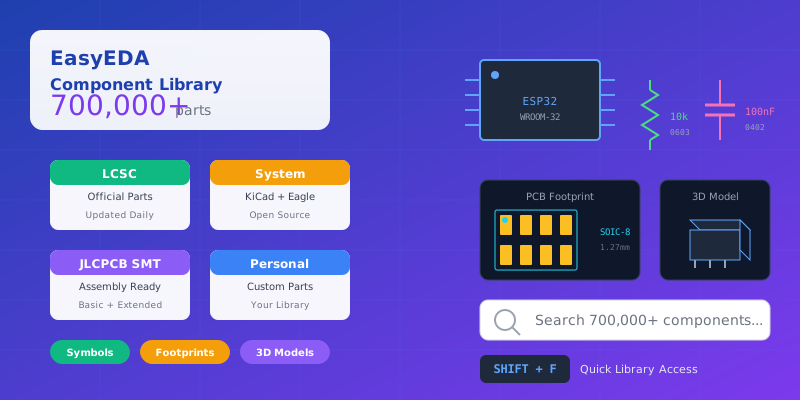
- EasyEDA has 700,000+ components from KiCad, Eagle, and LCSC libraries
- JLCPCB Basic parts have no setup fee; Extended parts add $3 per unique part type
- Use SHIFT+F to quickly open the library search dialog
- Symbol pin numbers must match footprint pad numbers for proper conversion
- Import external libraries from SamacSys, SnapEDA, and Ultra Librarian via Eagle format
Introduction
The component library is the backbone of any PCB design tool. A well-organized library with verified symbols and footprints can save you hours of work and prevent costly manufacturing errors. EasyEDA's component library system is one of its greatest strengths, offering over 700,000 components ready to use, with seamless integration to LCSC for parts ordering and JLCPCB for PCB assembly.
Whether you're a hobbyist building your first project or a professional designing for production, understanding how to effectively use the EasyEDA library system will dramatically improve your design efficiency. This guide covers everything from basic searching to creating custom components and managing team libraries.
Understanding EasyEDA Libraries
Library Types and Sources
EasyEDA organizes components into several library sources:
| Library Source | Description | When to Use |
|---|---|---|
| Work Space | Your personal and team components | Custom parts you've created or imported |
| LCSC | Official parts from LCSC.com (updated daily) | Production designs—parts can be ordered directly |
| LCSC Assembled | JLCPCB assembly-compatible parts (marked with SMT icon) | When using JLCPCB SMT assembly service |
| System | Open-source libraries (KiCad, Eagle, user contributed) | Generic parts, educational projects |
| Follow | Libraries from users you follow | Community-shared specialized components |
| User Contributed | Community-shared public libraries | Finding obscure or specialized parts |
Pro Tip: For production designs, always prioritize LCSC and LCSC Assembled libraries. These parts have verified footprints and can be ordered or assembled directly, reducing the risk of manufacturing errors.
Library Structure Explained
EasyEDA libraries contain different types of elements:
- Symbols — Schematic representations of components
- Spice Symbols — Components configured for SPICE simulation
- Footprints — PCB land patterns for physical mounting
- SCH Modules — Reusable circuit blocks that separate when placed
- PCB Modules — Reusable PCB layout sections
- 3D Models — Visual 3D representations linked to footprints
In EasyEDA Standard, symbols and footprints are separate entities that you link together. In EasyEDA Pro, a "Device" combines Symbol + Footprint + 3D Model + Properties into a unified component, making library management more streamlined.
Part 1: Finding Components
EasyEDA's 700,000+ component library means you can find almost any part—but only if you know how to search effectively. Let's explore the various search methods.
Basic Search Techniques
Access the library via SHIFT+F or the "Library" button in the left panel. Here are the basic search methods:
1. Search by Part Number
If you know the exact part number, type it directly into the search box:
Examples:
MAX232          → Find MAX232 RS-232 transceiver
LM7805          → Find 7805 voltage regulator
ESP32-WROOM-32  → Find ESP32 module
2. Search by Value + Footprint
Combine component values with package sizes for quick filtering:
Examples:
1k 0603     → 1kΩ resistor in 0603 package
100nF 0402  → 100nF capacitor in 0402 package
10uF 0805   → 10µF capacitor in 0805 package
3. Quick Filter
Use the Filter function to narrow results. Type a keyword like "0603" to instantly filter all components with that footprint size.
Advanced Parameter Search
For more specific searches, use the category navigation:
- Select the Library Type (LCSC, System, etc.)
- Click Table of Contents to open the category tree
- Navigate through categories: Resistors → Chip Resistors → 0603
- Browse or search within that category
Limitation: EasyEDA's built-in search doesn't have advanced parameter filtering (like voltage rating, tolerance, or temperature range). For parameter-based searches, use the LCSC Search Engine or jlcpcb.com/parts.
Using LCSC Search Engine
The LCSC Search Engine provides powerful parameter-based searching similar to lcsc.com:
- In the Library panel, click "Search Engine - LCSC Electronics"
- Search by parameters: voltage, current, tolerance, package, etc.
- View pricing, stock levels, and datasheets
- Place components directly into your schematic
This is the best method when you need parts with specific electrical characteristics.
Finding JLCPCB Assembly Parts
If you're planning to use JLCPCB's SMT assembly service, understanding the difference between Basic and Extended parts is critical for cost optimization.
| Part Type | Setup Fee | Examples |
|---|---|---|
| Basic Parts | $0 (pre-loaded on machines) | Common resistors, capacitors, diodes, transistors |
| Extended Parts | $3 per unique part type | MCUs, ICs, connectors, specialized components |
Cost Impact Example: Using 10 different Extended resistor values adds $30 to your assembly cost. Consolidate to Basic parts where possible!
Finding Basic Parts Efficiently
- Go to jlcpcb.com/parts
- Enable "Basic Parts" filter
- Search for your required component
- Copy the LCSC part number (C1234567)
- Paste into EasyEDA's library search
In EasyEDA, you can also filter for "LCSC Assembled" and sort by the SMT Type column, but the jlcpcb.com/parts database is more reliable.
Part 2: Placing Components
Placement Workflow
EasyEDA uses a click-click placement methodology (not drag-and-drop):
- Find the component in the Library panel
- Click on the component to select it
- Move your mouse to the schematic canvas
- Left-click to place the component
- Continue clicking to place multiple instances
- Press ESC or right-click to exit placement mode
Min Mode Tip: Click the "Min" button at the top-right of the Library dialog to keep it open while placing components. This prevents the dialog from closing after each placement.
Multi-Part Components
Complex ICs like the 74HC04 Hex Inverter are split into multiple sub-parts for schematic clarity:
- Each logic gate is a separate part (U?.1, U?.2, etc.)
- Power pins (VCC/GND) are typically in a dedicated part
- This reduces schematic clutter and improves readability
When placing multi-part components, you can place different parts from the same IC in different locations on your schematic. EasyEDA will assign them the same reference designator (e.g., U1.1, U1.2).
Keyboard Shortcuts for Speed
Master these shortcuts to dramatically speed up your workflow:
| Shortcut | Action |
|---|---|
| SHIFT + F | Open Library search dialog |
| S | Open Library panel |
| R | Rotate component 90° |
| X | Mirror component horizontally |
| Y | Mirror component vertically |
| CTRL + D | Duplicate selection |
| W | Wire tool |
| P | Place pin (in symbol editor) |
| Alt + F | Open Footprint Manager |
Part 3: Creating Custom Symbols
When a component isn't available in the library, you'll need to create your own. Let's walk through the symbol creation process.
Symbol Creation Basics
- Go to File → New → Symbol
- Consult your component's datasheet for pin configuration
- Draw the symbol outline using rectangles, lines, and arcs
- Add pins using the P hotkey
- Configure each pin's properties
- Set component attributes (Name, Prefix, Footprint)
- Save to your personal library with CTRL+S
Pin Configuration
Pin configuration is critical for proper schematic-to-PCB conversion. Each pin has several important properties:
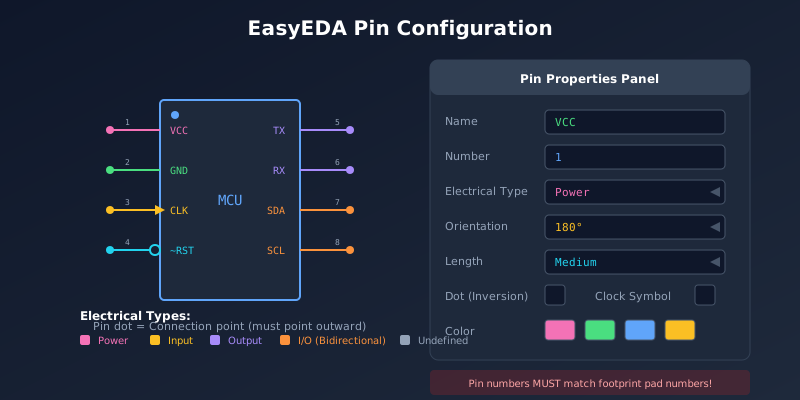
| Property | Description | Example |
|---|---|---|
| Name | Functional identifier | VCC, GND, TX, RX |
| Number | Physical pin reference (must match footprint) | 1, 2, 3, or A1, B2 |
| Electrical Type | For ERC checking | Input, Output, I/O, Power |
| Orientation | Pin direction | 0°, 90°, 180°, 270° |
| Length | Visual pin extension | Short, Medium, Long |
| Dot | Adds circle for logical inversion | ~RST, ~OE |
| Clock | Adds clock symbol (>) | CLK, SCK |
Critical Rule: Pin numbers in your symbol MUST match pad numbers in your footprint. Mismatches will cause incorrect PCB connections!
Pin Placement Best Practices
- Pin dot must point outward — Away from the symbol body
- Keep pins on grid — Enables clean wire connections
- Group related pins — VCC/GND together, data lines together
- Use standard orientations — Inputs on left, outputs on right
Using the Symbol Wizard
For ICs with many pins, the Symbol Wizard can generate symbols automatically:
- Open the Symbol Editor
- Go to Tools → Symbol Wizard
- Enter pin names and numbers
- Configure pin electrical types
- Click Update Symbol
- Adjust the layout as needed
- Save to your personal library
The Symbol Wizard is excellent for quickly creating symbols for dual inline packages (DIP), QFP, and other standard IC formats.
Part 4: Creating Custom Footprints
Footprint Creation Basics
Creating accurate footprints is essential for successful PCB manufacturing. Follow these steps:
- Get the datasheet — Download the component's technical documentation
- Identify orientation — Note the 0° reference position
- Note dimensions — Land pattern, pad sizes, pitch
- Go to File → New → Footprint
- Set grid and snap — Match your package pitch (e.g., 100mil for DIP)
- Place pads — Use the P hotkey
- Draw silkscreen — Switch to TopSilkLayer
- Add pin 1 marker — Use a dot or triangle
- Set origin — Use "Set Canvas Origin → By Center of Pads"
- Verify dimensions — Tools → Check Dimension
- Save with CTRL+S
Pad Types and Configuration
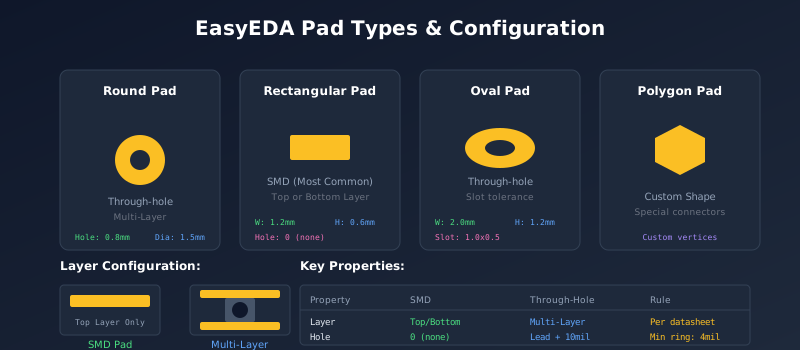
EasyEDA supports four pad shapes:
- Round — Through-hole components, test points
- Rectangular — SMD components (most common)
- Oval — Through-hole with slot tolerance
- Polygon — Custom shapes for special components
Key Pad Properties
| Property | SMD Pad | Through-Hole Pad |
|---|---|---|
| Layer | Top Layer or Bottom Layer | Multi-Layer |
| Hole Diameter | 0 (no hole) | Component lead + 10-12mil |
| Width/Height | Per datasheet land pattern | Hole + 2× annular ring (min 4mil) |
Using the Footprint Wizard
EasyEDA Pro includes a Footprint Wizard that generates common package types:
- Select the footprint type (SOIC, QFP, DIP, etc.)
- Enter physical dimensions from the datasheet
- The wizard automatically reserves pad margins
- Customize thermal pad and solder paste settings if needed
- Generate and adjust as necessary
Note that wizard-generated dimensions are for reference. Always verify against the component datasheet.
IPC-7351 Compliance
IPC-7351 is the industry standard for land pattern design. Key specifications include:
- Pad geometry — Shape, dimensions, spacing
- Component orientation — Standard 0° reference
- Courtyard area — Keep-out zone around component
- Solder mask and paste — Opening sizes and clearances
Best Practice: When in doubt, follow IPC-7351 guidelines. These standards are designed for reliable manufacturing and soldering.
Part 5: Linking Symbols and Footprints
Using the Footprint Manager
The Footprint Manager connects schematic symbols to PCB footprints. Access it via Tools → Footprint Manager or the shortcut Alt+F.
- Open the Footprint Manager
- Select a component from the list
- Double-click the desired footprint to assign it
- Verify pin-to-pad assignments
- Click Update to apply changes
Pro Tip: Use CTRL+Click or SHIFT+Select to batch-modify footprints for multiple components at once.
Pin-to-Pad Mapping
The Footprint Manager shows how symbol pins map to footprint pads. Verify that:
- Pin 1 connects to Pad 1
- All pins have corresponding pads
- No pins are left unmapped
- Orientation matches your component placement intent
For custom footprints, you may need to manually adjust the pin-to-pad mapping if the automatic assignment is incorrect.
Attaching 3D Models
3D models enhance visualization and enable enclosure design integration. EasyEDA supports OBJ and WRL formats.
Importing 3D Models
- Prepare your model in OBJ or WRL format
- For OBJ files, zip together with the MTL material file
- Open your PCB or Footprint
- Go to Tools → 3D Model Manager
- Click Import and select your file
- Adjust position, rotation, and scale
- Click Update to bind the model
Note: STEP format is not directly supported. Use FreeCAD to convert STEP files to WRL format, but expect some manual adjustment for alignment.
Part 6: Library Management
Effective library management saves time and ensures consistency across projects.
Using Favorites
Favorites provide quick access to frequently used components:
- Click the heart icon on any component to add to Favorites
- Access favorites in Library → Favorites
- Favorites are references, not copies—they update with the source library
- Use for components you place in every project
For infrequently used parts, simply search and place directly—no need to favorite.
Personal Library Organization
Your personal library stores custom components you've created or imported:
- Location: Library → Symbols/Footprints → Workspace
- Double-click any personal part to edit and refine it
- Use descriptive names and tags for easy searching
- Include datasheet links in component descriptions
Suggested Naming Convention
[MANUFACTURER]_[PART_NUMBER]_[PACKAGE]

Examples:
TI_LM7805_TO220
ESPRESSIF_ESP32-WROOM-32_MODULE
VISHAY_0603_0R1_1PCT
Project Libraries
The Project Library contains all components placed in the current project:
- Automatically populated when you place components
- Serves as a historical record of all devices used
- Deleted components remain for reference
- Modified components apply only to the current project
Saving Project Components to Personal Library
- Open the project's Library panel
- Select Project Library
- Right-click the component(s) to save
- Select Save As
- Choose destination in your personal library
Team Library Sharing
For team collaboration, you can share your personal libraries:
- Go to User Center → Libraries → Personal
- Select components to share
- Transfer to the team library
This ensures all team members use the same verified components, reducing errors and maintaining design consistency.
Part 7: Importing External Libraries
When components aren't in EasyEDA's libraries, import them from external sources like SamacSys, SnapEDA, or Ultra Librarian.
Importing from SamacSys
- Visit componentsearchengine.com
- Search for your component
- Download the Eagle format (.lbr file)
- In EasyEDA, go to File → Import → Eagle
- Select the downloaded .lbr file
- Check both symbol and footprint boxes
- Click Add to My Library
Importing from SnapEDA
- Visit snapeda.com
- Search for your component
- Download the Eagle format
- Import using EasyEDA's Eagle import feature
- Add symbols and footprints to your library
Importing from Ultra Librarian
- Visit ultralibrarian.com
- Search and download in Eagle format
- Import through EasyEDA's Eagle import
- Verify footprints against datasheets
Important: Always verify imported footprints against the component datasheet. External libraries may have errors or use different pad sizing conventions.
Part 8: Updating Components
Library Versioning
Starting with EasyEDA v6.4.20.8, the editor maintains version history for symbols and footprints:
- Each save creates a new version record
- Placed components use the version from when they were placed
- Library updates don't automatically affect existing designs
- You choose when to update components in your schematics
This protects your designs from unexpected changes when libraries are updated.
Syncing Schematic to PCB
After modifying schematics, synchronize changes to the PCB:
- In the schematic, go to Design → Update Components from Library
- Review changes and confirm updates
- Switch to the PCB editor
- Go to Design → Import Changes
- Apply the modifications
Updating Footprints
If you've edited a footprint after placing it in a design:
- Open the schematic
- Use the Footprint Manager (Alt+F)
- Select the component(s) to update
- Re-assign the updated footprint
- Import changes to PCB
Best Practices Summary
DO
- ✓ Use LCSC/JLCPCB libraries for production
- ✓ Verify footprints against datasheets
- ✓ Keep pin numbers matching pad numbers
- ✓ Use Favorites for common components
- ✓ Add descriptive tags and notes
- ✓ Include datasheet links
- ✓ Test custom footprints with paper printouts
- ✓ Use the Footprint Manager for assignments
DON'T
- ✗ Type footprint names manually (use picker)
- ✗ Assume imported libraries are correct
- ✗ Forget to set pin electrical types
- ✗ Create symbols without grid alignment
- ✗ Mix Basic and Extended parts carelessly
- ✗ Ignore IPC-7351 guidelines
- ✗ Skip the datasheet review step
- ✗ Create duplicate parts with same names
Common Issues & Solutions
Cannot find component in library
Try searching by LCSC part number (C1234567) or manufacturer part number. Check different library types (LCSC, System, User Contributed). Use the category browser to manually locate the part.
Footprint doesn't appear after import
Ensure you checked both symbol and footprint boxes during import. Check Libraries → Footprints → Personal. Some imports fail silently—try re-importing or creating the footprint manually.
Pin-to-pad mismatch in PCB
Open Footprint Manager and verify the pin mapping. Ensure symbol pin numbers exactly match footprint pad numbers. For alphanumeric pins (A1, B2), verify formatting matches.
3D model won't import or display correctly
Use OBJ (with MTL zipped together) or WRL format. STEP must be converted using FreeCAD. Use the "Auto" button first, then fine-tune position and scale manually.
Component shows as "Extended" but should be Basic
EasyEDA's classification may be out of sync with JLCPCB. Always verify at jlcpcb.com/parts for the authoritative Basic/Extended classification.
Conclusion
Mastering EasyEDA's component library system transforms your design workflow. With 700,000+ components available, seamless LCSC/JLCPCB integration, and powerful tools for creating custom parts, you have everything needed for professional PCB design.
Remember the key principles: prioritize verified LCSC parts for production, always verify footprints against datasheets, and maintain organized personal libraries. These practices will save you countless hours and prevent costly manufacturing errors.
For more EasyEDA tutorials and PCB design guides, explore our other articles or try Schemalyzer for AI-powered schematic analysis.
Frequently Asked Questions
How many components does EasyEDA have?
EasyEDA has over 700,000 components from various sources including KiCad libraries, Eagle libraries, LCSC parts database, and user contributions. New components are added to the LCSC library daily.
What's the difference between Basic and Extended parts in JLCPCB?
Basic parts are common components pre-loaded on JLCPCB's pick-and-place machines with no setup fee. Extended parts require loading and add $3 per unique part type to your assembly cost.
How do I create a custom component in EasyEDA?
Create the schematic symbol via File → New → Symbol, then create the footprint via File → New → Footprint. Link them using the Footprint Manager. Ensure pin numbers match pad numbers for proper schematic-to-PCB conversion.
Can I import components from other tools like Altium or KiCad?
EasyEDA can import Eagle format (.lbr) libraries directly. For Altium and KiCad, first export to Eagle format, then import. You can also use SamacSys, SnapEDA, or Ultra Librarian which offer Eagle format downloads.
Why doesn't my footprint work after importing?
Common issues include: not checking both symbol and footprint during import, pin-to-pad number mismatches, or the footprint being saved in an unexpected location. Check Libraries → Footprints → Personal and verify pin mapping.
How do I share libraries with my team?
Go to User Center → Libraries → Personal, select the components you want to share, and transfer them to your team library. Team members can then access these components from the Work Space library.
Related Articles
Complete EasyEDA Tutorial
Master EasyEDA from schematic to PCB with our comprehensive 2025 guide.
JLCPCB Assembly Guide
Complete guide to JLCPCB SMT assembly including BOM preparation and cost optimization.
How to Export EasyEDA Schematics
Learn all export formats: PDF, PNG, SVG, Gerber, BOM, and KiCad conversion.
25 Common Schematic Errors
Learn to identify and fix the most common schematic errors before PCB fabrication.
Catch Component Errors Before Manufacturing
Use Schemalyzer to automatically review your EasyEDA schematics for missing footprints, pin mismatches, and other library-related issues.
Try Schemalyzer Free