
Introduction
EasyEDA provides extensive export capabilities that let you share your designs, manufacture PCBs, collaborate with other engineers, and migrate to different EDA tools. Whether you need a high-resolution image for documentation, Gerber files for manufacturing, or want to convert your design to KiCad, EasyEDA has you covered.
This comprehensive guide covers every export format available in EasyEDA Standard and Pro editions, with step-by-step instructions for each. You'll learn not just how to export, but when to use each format and best practices for optimal results.
What You'll Learn
- Export schematics as PDF, PNG, and SVG images
- Save EasyEDA source files for backup and sharing
- Generate Gerber files for PCB manufacturing
- Create BOM and Pick & Place files for assembly
- Export netlists for simulation and other tools
- Convert EasyEDA designs to KiCad and Altium formats
Export Format Overview
EasyEDA supports multiple export formats, each serving different purposes. Here's a quick reference to help you choose the right format:
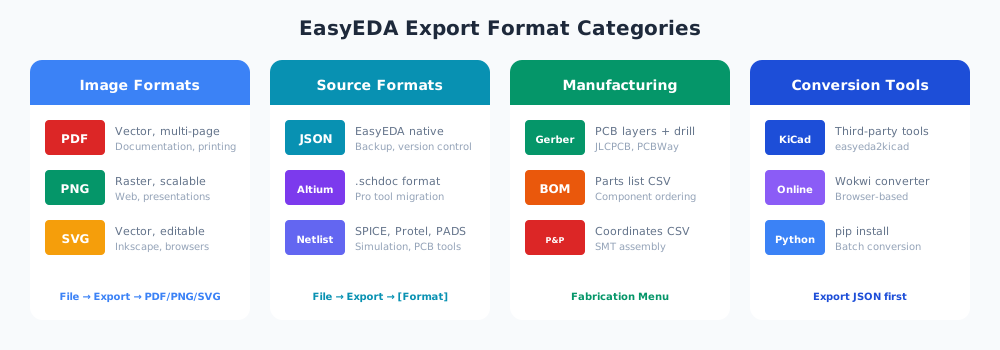
| Format | Type | Best For |
|---|---|---|
| Image (Vector) | Documentation, printing, sharing | |
| PNG | Image (Raster) | Web, presentations, quick sharing |
| SVG | Image (Vector) | Editing in Inkscape, scalable graphics |
| JSON | Source | Backup, sharing, version control |
| Altium (.schdoc) | Source | Migration to Altium Designer |
| Gerber | Manufacturing | PCB fabrication at any manufacturer |
| BOM (CSV/Excel) | Manufacturing | Component ordering, assembly |
| Pick & Place | Manufacturing | SMT assembly machines |
| Netlist | Data | SPICE simulation, PCB tools |
Image Exports (PDF, PNG, SVG)
Image exports are essential for documentation, presentations, and sharing your designs with non-technical stakeholders. EasyEDA supports three image formats, each with specific advantages.
PDF Export
PDF is the most versatile format for documentation. It preserves vector quality, supports multiple pages, and can be viewed on any device.
How to Export PDF
- Open your schematic in EasyEDA
- Go to File → Export → PDF/PNG/SVG...
- Select PDF as the format
- Configure the following options:
- Wire Width: Set to 1x for standard output, 2x for thicker lines
- Multi-Sheet: Choose "Merged sheet" for a single multi-page PDF or "Separated sheet" for individual files
- Processing Engine: Select "Local" for faster processing
- Click Export to download
Pro Tip: PDF for Manufacturing Documentation
When creating documentation for manufacturing, export with 2x wire width for better readability on printed pages. Include assembly drawings alongside schematics in your documentation package.
PNG Export
PNG is a raster format ideal for web pages, presentations, and quick sharing. Unlike PDF, PNG creates a fixed-resolution image.
How to Export PNG
- Open your schematic in EasyEDA
- Go to File → Export → PDF/PNG/SVG...
- Select PNG as the format
- Configure the size:
- 1x: 600 pixels width (suitable for previews)
- 2x: 1200 pixels width (good for documentation)
- 4x: 2400 pixels width (high resolution for printing)
- Click Export to download
Recommended PNG Sizes
- Blog posts/web: 2x (1200px)
- Presentations: 2x or 4x
- Print documentation: 4x or higher
- Quick preview/email: 1x (600px)
SVG Export
SVG (Scalable Vector Graphics) is a vector format that can be edited in programs like Inkscape, Adobe Illustrator, or any web browser. It's perfect when you need to modify the schematic appearance after export.
How to Export SVG
- Open your schematic in EasyEDA
- Go to File → Export → PDF/PNG/SVG...
- Select SVG as the format
- Configure size and wire width as needed
- Click Export to download
Exporting SVG Source Code
For more control, you can export the raw SVG source code:
- Go to File → Export → SVG source...
- Copy the contents from the dialog
- Paste into a text editor and save with
.svgextension
This method allows offline editing and doesn't require an internet connection. The exported SVG can be opened in any web browser or edited in Inkscape for further refinement.
Source File Exports
Source file exports preserve your complete design data, allowing you to share projects, create backups, or migrate to other EDA tools.
EasyEDA JSON Format
EasyEDA's native format is JSON (JavaScript Object Notation), a text-based format that can be read by many programs. Exporting in JSON format creates a complete backup of your design that can be re-imported later.
Exporting Individual Files
- Open the schematic or PCB you want to export
- Go to File → EasyEDA File Source...
- Save the JSON file to your local drive
Exporting Complete Projects
- In the project panel, right-click your project folder
- Select Download
- A ZIP file containing all project files will be downloaded
Backing Up Projects
- Right-click your project folder
- Select Backup Project
- The backup is created in EasyEDA's cloud storage
Re-Opening JSON Files
To open a saved JSON file, use File → Open → EasyEDA... and select your file. The design will load with all components, connections, and attributes intact.
Use Cases for JSON Export
- Version control: Store designs in Git alongside firmware
- Offline backup: Keep local copies of critical designs
- Sharing: Send complete projects to collaborators
- Migration: Use as input for conversion tools
Altium Designer Export
EasyEDA can export schematics directly to Altium Designer format (.schdoc), making it easier to migrate designs to the professional Altium ecosystem.
How to Export to Altium
- Open your schematic in EasyEDA
- Go to File → Export → Altium...
- Click Download now
- An .schdoc file will be created
Altium Export Limitations
The Altium export may not perfectly preserve all EasyEDA-specific features. After importing into Altium Designer, review symbol properties, net names, and component attributes. Some manual cleanup may be required.
Manufacturing File Exports
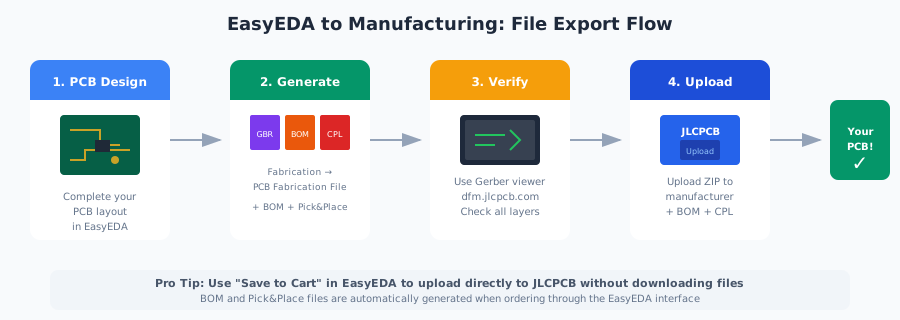
Manufacturing exports are essential for producing your PCB. These files communicate your design to fabrication houses and assembly services.
Gerber Files for PCB Fabrication
Gerber is the industry standard format for PCB manufacturing. All PCB fabrication houses accept Gerber files, making them essential for production.
How to Generate Gerber Files
- Open your PCB layout in EasyEDA
- Go to File → Generate PCB Fabrication File (Gerber)
or Fabrication → PCB Fabrication File (Gerber) - A dialog opens showing your PCB preview and pricing
- Click Generate Gerber to download
- You'll receive a ZIP file containing all Gerber files
Gerber File Contents
The generated ZIP file includes:
Copper Layers
Gerber_TopLayer.GTL- Top copper layerGerber_BottomLayer.GBL- Bottom copper layerGerber_InnerLayer1.G1, etc. - Internal layers (multi-layer boards)
Silkscreen & Mask
Gerber_TopSilkLayer.GTO- Top silkscreen (component labels)Gerber_BottomSilkLayer.GBO- Bottom silkscreenGerber_TopSolderMaskLayer.GTS- Top solder maskGerber_BottomSolderMaskLayer.GBS- Bottom solder mask
Drill & Outline
Gerber_BoardOutline.GKO- Board shape and slotsDrill_PTH_Through.DRL- Plated through-holesDrill_NPTH_Through.DRL- Non-plated holes
Assembly (Stencil)
Gerber_TopPasteMaskLayer.GTP- Top paste/stencilGerber_BottomPasteMaskLayer.GBP- Bottom paste/stencil
Verifying Gerber Files
Before ordering, always verify your Gerber files using a viewer:
- JLCPCB Online Viewer: dfm.jlcpcb.com - Free DFM check included
- Gerbv: Open-source desktop viewer
- FlatCAM: Open-source CAM software
Direct JLCPCB Integration
EasyEDA integrates directly with JLCPCB. In the Gerber dialog, click "Save to Cart" to add your PCB directly to your JLCPCB order without downloading files separately.
Bill of Materials (BOM)
The BOM lists all components in your design with quantities, values, and part numbers. It's essential for ordering components and assembly services.
How to Export BOM
- Open your schematic or PCB in EasyEDA
- Click the BOM icon in the top toolbar
- Review the component list in the dialog
- Click Export BOM to download
The exported file is named: BOM_[project name]_[date]_[time].csv
BOM Contents
The exported BOM includes:
- Component designators (R1, C1, U1, etc.)
- Component values and descriptions
- Footprint/package information
- LCSC part numbers (if assigned)
- Quantities
LCSC Part Numbers
When using components from the LCSC library in EasyEDA, their part numbers are automatically included in the BOM. This enables 100% automatic matching when ordering from JLCPCB assembly services.
Pick and Place Files
Pick and Place files (also called Centroid or CPL files) contain the exact coordinates and rotation of each component. Assembly machines use this data to place components accurately.
How to Export Pick and Place
- Open your PCB layout in EasyEDA
- Go to File → Export Pick and Place File
or Fabrication → Pick and Place File - Configure options:
- Mirror bottom coordinates: Usually leave unchecked for JLCPCB
- Click Export to download
The exported file is named: PickAndPlace_[PCB name]_[date]_[time].csv
Pick and Place File Contents
Each row contains:
- Designator: Component reference (U1, R1, etc.)
- Comment: Component value or part number
- Footprint: Package type
- Mid X, Mid Y: Center coordinates in mm
- Ref X, Ref Y: Reference point coordinates
- Pad X, Pad Y: First pad coordinates
- Layer: Top or Bottom
- Rotation: Angle in degrees
File Format Compatibility
The Pick and Place file uses Unicode encoding with tab delimiters. If your manufacturer can't read the file, open it in Excel and save as "CSV (Comma Separated)" or use a text editor to change the encoding to ANSI/UTF-8 and replace tabs with commas.
Netlist Exports
Netlists describe the connections between components in your schematic. They're used for simulation, PCB layout, and interoperability with other EDA tools.
Supported Netlist Formats
EasyEDA exports netlists in four formats:
LTSpice (for Simulation)
A SPICE-compatible netlist for circuit simulation. Use this format to run simulations in LTSpice, ngspice, or other SPICE simulators.
Note: Your schematic must have a ground reference to run simulations.
Protel/Altium (for PCB)
Import this netlist into Altium Designer or Protel to create a PCB layout from your EasyEDA schematic.
PADS (for PCB)
Compatible with Mentor PADS PCB layout software. Use this format to continue PCB design in the PADS ecosystem.
FreePCB (for PCB)
For use with FreePCB, a free open-source PCB editor for Windows.
How to Export Netlist
- Open your schematic in EasyEDA
- Go to File → Export NetList → [Format]...
- Select your desired format (Spice, Protel, PADS, or FreePCB)
- Save the netlist file
Running SPICE Simulations
EasyEDA has a built-in simulation engine, but for complex simulations you may want to export the LTSpice netlist and run it locally. Save the netlist as a .cir file and run it with ngspice or LTSpice for unlimited simulation time.
Converting to KiCad
While EasyEDA doesn't have a native KiCad export, several third-party tools enable conversion. This is useful when migrating to KiCad or collaborating with engineers who use KiCad.
Option 1: Online Converter (Easiest)
The Wokwi EasyEDA to KiCad Converter is the simplest option:
- Export your design as EasyEDA JSON (see above)
- Visit the online converter
- Upload your JSON file
- Download the converted KiCad files
Files are converted in your browser and never leave your computer.
Option 2: Python Script (easyeda2kicad.py)
For batch conversions or automation, use the easyeda2kicad.py Python library:
# Install the library
pip install easyeda2kicad

# Convert a component by LCSC part number
easyeda2kicad --lcsc_id C2040

# Output files:
# - easyeda2kicad.kicad_sym (KiCad symbol)
# - easyeda2kicad.pretty/ (footprint library)
# - easyeda2kicad.3dshapes/ (3D models)
This tool also fetches 3D models in WRL and STEP format.
Option 3: Full Project Conversion (easyeda2kicad6)
For converting complete PCB projects, use easyeda2kicad6:
- Export your EasyEDA project as JSON
- Run the conversion script
- Open the converted project in KiCad 6+
- Add the generated libraries to KiCad's library paths
- Run DRC and ERC to verify the conversion
Conversion Limitations
- Multi-part symbols may need manual adjustment
- Silkscreen positioning may differ from the original
- PCB art converts to polylines and may need cleanup
- Always run DRC/ERC after conversion
- Verify footprints match component datasheets
Export Tips and Best Practices
Always Verify Before Manufacturing
Open your Gerber files in a viewer like JLCPCB's DFM tool before ordering. Check layer alignment, drill positions, and board outline. A few minutes of verification can save days of delay and remake costs.
Include LCSC Part Numbers
When using JLCPCB assembly, assign LCSC part numbers to all components in your schematic. This enables automatic BOM matching and ensures correct component selection during assembly.
Keep Local Backups
Regularly export your projects as EasyEDA JSON files and store them in version control (Git) or cloud storage. This protects against data loss and allows you to track design changes over time.
Use Vector Formats for Documentation
Export as PDF or SVG for documentation that needs to be printed or scaled. These vector formats maintain quality at any size, while PNG exports have fixed resolution that may become pixelated when enlarged.
Name Files Descriptively
Include version numbers and dates in exported file names. For example: "PowerSupply_v2.3_2025-01-15_Gerber.zip" makes it clear which version was sent to manufacturing.
Troubleshooting Common Issues
BOM or Pick & Place file can't be read by manufacturer
EasyEDA exports CSV files with Unicode encoding and tab delimiters. If your manufacturer can't read them:
- Open the file in Excel or WPS Office
- Save as "CSV (Comma Separated)"
- Or use a text editor to change encoding to ANSI/UTF-8
- Replace tabs with commas if needed
Gerber files missing layers
If the manufacturer reports missing layers:
- Re-generate Gerber files from EasyEDA
- Don't extract the ZIP - upload the entire ZIP file
- Use JLCPCB's online Gerber viewer to verify all layers are present
- Check that your PCB has content on all expected layers
Component rotations wrong after export
Different tools use different rotation conventions. If components appear rotated incorrectly in the target tool:
- Check the Pick & Place file rotation values
- Some tools count clockwise, others counter-clockwise
- You may need to adjust rotations by adding/subtracting 90 or 180 degrees
- JLCPCB's preview tool shows actual placement - verify there
KiCad conversion has missing or incorrect symbols
Conversion tools can't guarantee 100% accuracy. After conversion:
- Add the generated symbol/footprint libraries to KiCad
- Run ERC (Electrical Rule Check) to find issues
- Manually verify pin assignments on critical ICs
- Compare footprints against component datasheets
- Multi-part symbols may need manual recreation
Export produces empty or corrupted file
If exports fail or produce unusable files:
- Try refreshing the browser (for web version)
- Clear browser cache and try again
- Try a different browser (Chrome usually works best)
- For large designs, try exporting sheets individually
- Contact EasyEDA support if the issue persists
Conclusion
EasyEDA's comprehensive export capabilities make it easy to share your designs, manufacture PCBs, and collaborate with engineers using different tools. By understanding when to use each format, you can streamline your workflow and ensure your designs are properly communicated at every stage.
Key takeaways from this guide:
- Use PDF for documentation and printing
- Use PNG for web and presentations
- Use JSON for backups and version control
- Use Gerber for PCB manufacturing
- Use BOM + Pick & Place for assembly services
- Use Netlist for simulation and PCB tools
- Always verify exports before manufacturing
Review Your Schematics Before Export
Before exporting for manufacturing, use Schemalyzer to catch errors in your schematic. Our AI-powered analysis identifies common mistakes that could cause problems during fabrication or assembly.
Try Schemalyzer Free