Key Takeaways
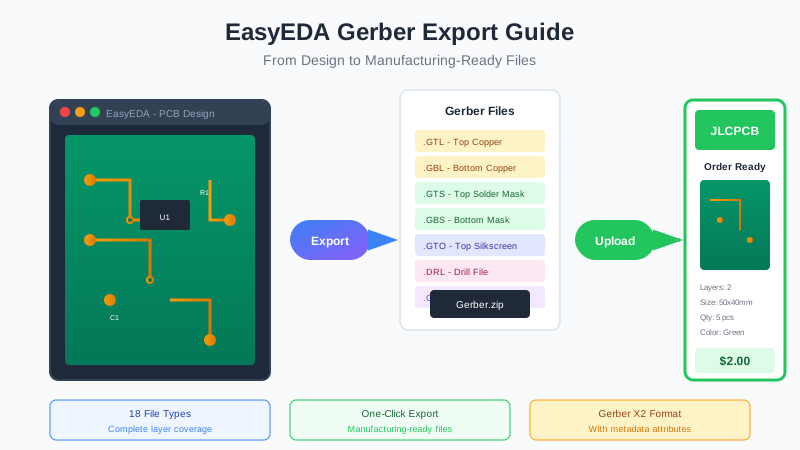
- EasyEDA generates 18 different Gerber files covering all PCB layers and manufacturing requirements
- Always verify your Gerber files with a viewer before ordering to catch alignment and layer issues
- Missing drill files and board outline are the most common causes of manufacturing delays
- Use the pre-submission checklist to ensure error-free manufacturing
Introduction
You've spent hours perfecting your PCB design in EasyEDA. The schematic is verified, components are placed, traces are routed, and design rule checks pass. Now comes the crucial step: exporting your design for manufacturing.
Gerber files are the universal language of PCB fabrication. Every manufacturer worldwide, from JLCPCB to PCBWay to your local fab house, uses these files to transform your digital design into a physical circuit board. Get them wrong, and you'll face delays, extra costs, or worse—boards that don't work.
This guide covers everything you need to know about exporting Gerber files from EasyEDA: the step-by-step process, all 18 file types explained, critical settings, verification techniques, and the common mistakes that cause 90% of manufacturing issues.
What Are Gerber Files?
Named after their inventor H. Joseph Gerber, Gerber files are the standard format for describing PCB designs to manufacturing equipment. They've been in use since the 1960s and remain the industry standard today.
Think of Gerber files as a set of instructions that tell fabrication machines exactly where to:
- Etch copper traces on each layer
- Apply solder mask (the green coating)
- Print silkscreen (component labels)
- Drill holes for vias and through-hole components
- Cut the board outline
Why Not Just Send the EasyEDA File?
PCB design files contain much more than what's needed for manufacturing—schematic links, design history, component models, and software-specific data. Gerber files strip away everything except the precise manufacturing instructions, ensuring:
- Universal compatibility: Any manufacturer can read them
- No software dependency: Fabs don't need EasyEDA
- Intellectual property protection: Only manufacturing data is shared
- Precise instructions: Eliminates interpretation errors
Gerber Formats: RS-274X vs Gerber X2
Before diving into the export process, you should understand the two main Gerber formats you'll encounter:
RS-274X (Extended Gerber)
Released in 1998, RS-274X—also called Extended Gerber or X-Gerber—is still the most widely used format, handling about 90% of all PCB designs worldwide.
Key features:
- Self-contained files with embedded aperture definitions
- Includes units, format, and coordinate information
- No separate aperture files needed (unlike older 274D)
- Universally supported by all manufacturers
Gerber X2 (Enhanced Format)
Released in 2014, Gerber X2 adds metadata attributes to the graphics. This helps manufacturers understand your design intent automatically.
Additional capabilities:
- File function identification (top copper, solder mask, etc.)
- Pad attributes (SMD pad, via, fiducial)
- Layer stackup information
- Impedance-controlled track marking
- Net information for electrical testing
Good news: Gerber X2 is fully backward compatible with RS-274X. Any X2 file will work with older systems—they'll just ignore the metadata attributes.
Which Should You Use?
Always use Gerber X2 when available. EasyEDA exports X2-compatible files by default. The benefits include:
- Higher first-pass yield due to less interpretation
- Better DFM (Design for Manufacturing) checks
- Shorter lead times from cleaner data transfer
- Automatic layer identification reduces errors
Step-by-Step Gerber Export in EasyEDA
Follow these steps to export manufacturing-ready Gerber files from your EasyEDA PCB design:
Step 1: Run Design Rule Check (DRC)
Before exporting, always verify your design meets manufacturing requirements:
- Open your PCB design in EasyEDA
- Click DRC in the toolbar (or press
Ctrl+Shift+D) - Review any errors in the right panel
- Fix all errors before proceeding
Important: EasyEDA's default design rules match JLCPCB capabilities. However, trace widths below 0.127mm (5mil) may increase manufacturing costs.
Step 2: Access the Gerber Export
Navigate to the export function using one of these methods:
- Menu: File → Generate PCB Fabrication File (Gerber)
- Menu: Fabrication → PCB Fabrication File (Gerber)
- Toolbar: Click the Fabrication button
Step 3: Configure Export Settings
The Gerber generation window opens with several options:
- One-click export: Uses default settings for all layers (recommended for most users)
- Custom configuration: Modify layer selection and settings as needed
Step 4: Generate and Download
- Click Generate Gerber to create the files
- Your browser will download a compressed ZIP file
- Save it to a memorable location
Pro tip: You can also click "Check PCB Price" in the export window to see JLCPCB pricing before downloading.
All 18 Gerber File Types Explained
When you extract the downloaded ZIP file, you'll find up to 18 different files. Here's what each one does:
Copper Layers
| Extension | Name | Description |
|---|---|---|
.GTL | Top Layer | Top side copper traces and pads |
.GBL | Bottom Layer | Bottom side copper traces and pads |
.G1, .G2 | Inner Layer | Internal copper layers (signal) |
.GP1, .GP2 | Inner Plane | Internal copper planes (power/ground) |
Solder Mask
| Extension | Name | Description |
|---|---|---|
.GTS | Top Solder Mask | Areas without green coating (pad openings) on top |
.GBS | Bottom Solder Mask | Areas without green coating (pad openings) on bottom |
Silkscreen
| Extension | Name | Description |
|---|---|---|
.GTO | Top Silkscreen | Component outlines and labels on top |
.GBO | Bottom Silkscreen | Component outlines and labels on bottom |
Paste Mask (for Stencils)
| Extension | Name | Description |
|---|---|---|
.GTP | Top Paste Mask | Solder paste openings for SMD assembly on top |
.GBP | Bottom Paste Mask | Solder paste openings for SMD assembly on bottom |
Drilling Files
| Extension | Name | Description |
|---|---|---|
.DRL (PTH) | Plated Through Holes | Via holes and through-hole component holes |
.DRL (NPTH) | Non-Plated Holes | Mounting holes, slots without plating |
Board Definition & Documentation
| Extension | Name | Description |
|---|---|---|
.GKO | Board Outline | PCB shape, slots, and cutouts for routing |
.GTA / .GBA | Assembly Layers | Component placement reference (read-only) |
.GML | Mechanical Layer | Mechanical specifications and notes |
.GDL | Document Layer | Design remarks and annotations |
Export Settings & Options
Understanding these settings helps you troubleshoot issues and customize exports for specific manufacturers.
Coordinate Format
The format defines how coordinates are represented in the files. EasyEDA uses:
- Default: 3:3 - 3 integer digits, 3 decimal digits (millimeters)
- Large boards: 4:2 - Automatically switches when PCB size exceeds standard range
Units
EasyEDA exports Gerber files in millimeters by default. Most manufacturers accept both mm and inches, but consistency is key—don't mix units across files.
File Naming
EasyEDA uses a consistent naming convention:
Gerber_TopLayer.GTL
Gerber_BottomLayer.GBL
Gerber_TopSolderMaskLayer.GTS
Gerber_BottomSolderMaskLayer.GBS
Gerber_TopSilkscreenLayer.GTO
Gerber_BottomSilkscreenLayer.GBO
Gerber_BoardOutlineLayer.GKO
Drill_PTH_Through.DRL
Drill_NPTH_Through.DRL
Important: Keep EasyEDA's naming—it matches what JLCPCB expects. Renaming files can cause layer identification errors.
Verifying Your Gerber Files
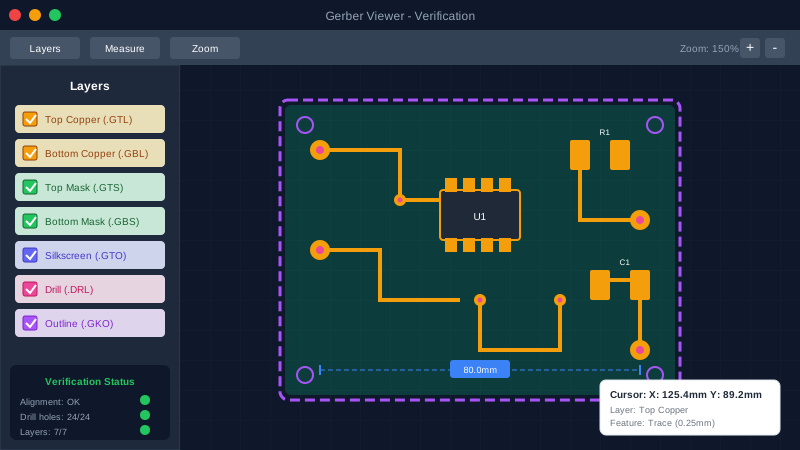
Never submit Gerber files without verifying them first. This single step prevents most manufacturing issues.
Why Verification Matters
Even if your design passes DRC, Gerber export can introduce:
- Layer misalignment from coordinate rounding
- Missing features from export filter settings
- Incorrect polarity (positive vs. negative)
- Aperture rendering issues
Recommended Gerber Viewers
| Viewer | Platform | Best For |
|---|---|---|
| JLCPCB Gerber Viewer | Web | Quick check before ordering (integrated DFM) |
| Gerbv | Windows, Mac, Linux | Free, open-source, lightweight |
| FlatCAM | Windows, Mac, Linux | Also generates G-code for CNC |
| ViewMate | Windows | Professional features, measurement tools |
| GerberLogix | Windows | Industry standard, advanced analysis |
What to Check
- Layer alignment: Toggle layers on/off— traces should align perfectly with pads
- Drill positions: Holes should center on via/pad locations
- Board outline: Matches your intended shape
- Solder mask openings: All pads have mask clearance
- Silkscreen: Text is readable, not overlapping pads
- File completeness: All expected layers present
10 Common Gerber File Mistakes to Avoid
Learn from others' errors. These mistakes cause the majority of manufacturing delays and quality issues:
1. Missing or Incomplete Files
The most common issue is submitting incomplete file sets. Each layer needs its own file, and missing any causes production to stop.
Prevention: Always upload the complete ZIP file from EasyEDA—don't extract and select individual files.
2. Missing Drill Files
Drill files (.DRL) tell the manufacturer where to make holes. Without them, no vias, no through-hole components, no mounting holes.
Prevention: Verify your ZIP contains both PTH and NPTH drill files. Check hole counts in your Gerber viewer.
3. Missing Board Outline
The board outline (.GKO) defines where to cut. Without it, manufacturers must guess—or contact you for clarification.
Prevention: EasyEDA includes this by default. Verify it shows a closed shape in your Gerber viewer.
4. Layer Misalignment
When layers don't align, traces miss pads, vias are offset, and the board fails.
Prevention: Use fiducial marks in your design. Toggle layers in the viewer to verify alignment.
5. Incorrect Drill Format
Drill files need proper header information specifying the coordinate format. Wrong format = holes in wrong places.
Prevention: EasyEDA handles this automatically. Don't edit drill files manually.
6. Mixed Units
Using millimeters in some files and inches in others causes scaling errors.
Prevention: Export everything at once from EasyEDA—don't mix exports from different sessions.
7. Insufficient Trace/Space
Traces too thin or too close together exceed manufacturing capabilities.
Prevention: Set design rules to match your manufacturer. JLCPCB minimum is 0.127mm (5mil), but 0.15mm (6mil) is safer.
8. Inner Clearance Violations
Insufficient distance between drill holes and inner copper layers causes shorts.
Prevention: Maintain at least 0.25mm (10mil) clearance, preferably 0.38mm (15mil).
9. Overlapping Features
Overlapping traces, pads, or silkscreen can cause shorts or unreadable text.
Prevention: Run DRC before export. Check silkscreen doesn't overlap pads.
10. Unclear File Naming
Renamed or poorly named files force manufacturers to guess which layer is which.
Prevention: Keep EasyEDA's default names. If you must rename, provide a layer mapping document.
JLCPCB Ordering Workflow
EasyEDA integrates directly with JLCPCB, making ordering seamless:
Method 1: Direct Order from EasyEDA
- Generate Gerber files (as described above)
- In the export window, click Order at JLCPCB
- Files are automatically uploaded
- Configure board options (color, thickness, etc.)
- Complete checkout
Method 2: Upload to JLCPCB Website
- Download the Gerber ZIP file
- Go to jlcpcb.com
- Click Order Now → Add Gerber File
- Upload your ZIP (drag & drop works)
- Review the auto-detected specifications
- Adjust options as needed and order
JLCPCB Order Options Explained
| Option | Default | Notes |
|---|---|---|
| Layers | Auto-detected | Based on your Gerber files |
| Dimensions | Auto-detected | From board outline |
| Quantity | 5 | Minimum order, often cheapest |
| PCB Color | Green | Free; others may add cost |
| Surface Finish | HASL(Lead) | Lead-free HASL or ENIG for fine-pitch |
| Thickness | 1.6mm | Standard; 0.8-2.0mm available |
| Copper Weight | 1 oz | 2 oz for high current |
Troubleshooting Guide
Problem: "File upload failed"
Causes:
- ZIP file corrupted during download
- File size too large (>100MB)
- Invalid characters in filenames
Solution: Re-export from EasyEDA. Use your browser's native downloader (not download managers).
Problem: Layers detected incorrectly
Causes:
- Non-standard file names
- Missing or damaged Gerber headers
Solution: Keep EasyEDA's default naming. Manually specify layers if needed during upload.
Problem: Drill holes don't align with pads
Causes:
- Different coordinate origins in files
- Unit mismatch between Gerber and drill files
Solution: Export all files together from EasyEDA. Don't mix exports from different sessions.
Problem: Board outline not recognized
Causes:
- Open shape (not closed loop)
- Multiple overlapping shapes
- Line width too thin
Solution: Ensure board outline is a single closed shape. Use at least 0.15mm line width.
Problem: Silkscreen over pads
Causes:
- Component footprints with large silkscreen
- Manual silkscreen additions
Solution: EasyEDA automatically clips silkscreen over pads. If issue persists, manually adjust silkscreen layer.
Pre-Submission Checklist
Use this checklist before every Gerber submission to ensure error-free manufacturing:
Before Export
- Design Rule Check (DRC) passes with 0 errors
- Board outline is a single, closed shape
- All components are placed and routed
- Silkscreen doesn't overlap pads
- Minimum trace width/spacing meets manufacturer specs
File Check
- ZIP file contains all copper layers
- Both solder mask files present (.GTS, .GBS)
- Silkscreen files included (.GTO, .GBO)
- Drill files present (PTH and NPTH if applicable)
- Board outline file present (.GKO)
Viewer Verification
- All layers align correctly when overlaid
- Drill holes center on pads/vias
- Solder mask has proper pad openings
- Board dimensions match expected size
- No unexpected features or artifacts
Frequently Asked Questions
Can I edit Gerber files after export?
Technically yes, with tools like CAM350 or ViewMate. But don't. Make changes in EasyEDA and re-export. Editing Gerbers risks introducing errors and breaks the design-to-manufacture traceability.
Why does my manufacturer ask for different files?
Different manufacturers may request additional files like IPC-D-356 netlist (for electrical testing), assembly drawings, or fabrication notes. EasyEDA's standard export covers fabrication; assembly files are separate.
How do I export for assembly (PCBA)?
For SMT assembly, you also need BOM (Bill of Materials) and CPL (Component Placement List) files. In EasyEDA, go to Fabrication → BOM & Pick and Place. See our JLCPCB Assembly Guide for details.
What if I have inner layers?
EasyEDA automatically includes all inner layers in the export. For 4-layer boards, you'll see G1, G2 or GP1, GP2 files. Verify layer order matches your stackup during ordering.
Can I send just the Gerber files without the project?
Yes! That's the whole point. Gerber files contain only manufacturing data, not your intellectual property. Your schematic, component values, and design files stay private.
Why is the ZIP file generated in browser?
EasyEDA is a web-based tool. The browser generates the Gerber files locally for speed and privacy. Use your browser's native download function—download managers may corrupt the file.
Conclusion
Exporting Gerber files from EasyEDA is straightforward, but attention to detail prevents costly mistakes. The key steps are:
- Run DRC before export to catch design issues
- Use one-click export for consistent, manufacturer-ready files
- Verify with a Gerber viewer every time, without exception
- Keep files together in the original ZIP format
- Use the checklist before every submission
With these practices, your PCBs will manufacture correctly the first time. When issues do arise, this guide's troubleshooting section and the common mistakes list will help you diagnose and fix problems quickly.
Ready to take your designs to the next level? Upload your schematic to Schemalyzer for AI-powered review before manufacturing—catch errors that even DRC misses.