Key Takeaways
- BOM requires 3 columns: Comment (value/specs), Designator (C1, R2), and Footprint (0603, SOIC-8)
- CPL needs 4 columns: Designator, Mid X, Mid Y, Layer, and Rotation (in degrees)
- LCSC part numbers (Cxxxxx) guarantee 100% accurate part matching
- Basic parts = No setup fee; Extended parts = $3 per unique part
- Always verify component rotation in JLCPCB's preview before ordering
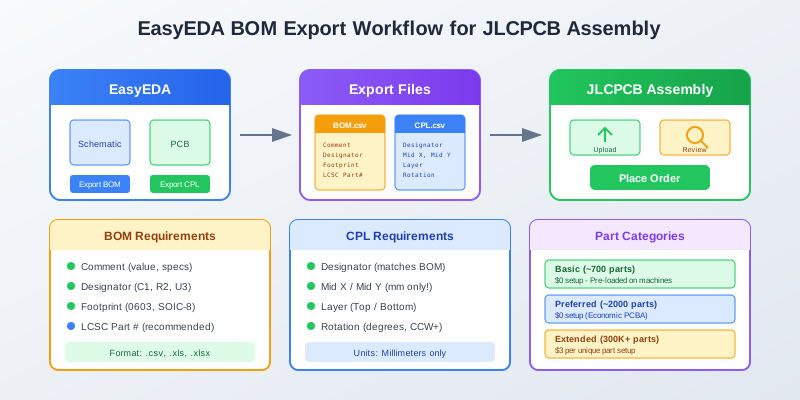
Introduction: Why Perfect BOM/CPL Files Matter
You've spent hours perfecting your schematic and PCB layout in EasyEDA. Now comes the moment of truth: exporting files for JLCPCB assembly. This step seems simple, but incorrect BOM or CPL files are the #1 cause of assembly errors and project delays.
The good news? EasyEDA and JLCPCB are designed to work together seamlessly. With the right workflow, you can export files that result in perfectly assembled boards on the first try.
This guide covers everything from basic exports to advanced troubleshooting, including the rotation issues that plague many first-time users. By the end, you'll have a bulletproof workflow for JLCPCB assembly success.
Why EasyEDA + JLCPCB?
EasyEDA is developed by JLCPCB, so the export formats are optimized for their assembly service. Files exported from EasyEDA should work without modification in most cases.
What Are BOM and CPL Files?
Before diving into exports, let's understand what these files do and why they're essential for assembly.
Bill of Materials (BOM)
The BOM is a shopping list for your PCB. It tells JLCPCB which components to place on your board:
- What parts: Component values, specifications, and part numbers
- How many: Quantity of each unique part
- Where: Reference designators (C1, R5, U3)
- Package: Physical size/footprint (0603, SOIC-8)
| Comment | Designator | Footprint | LCSC Part # |
|---|---|---|---|
| 100nF 50V X7R | C1, C2, C3 | 0603 | C14663 |
| 10K 1% | R1, R2, R3, R4 | 0603 | C25804 |
| STM32F103C8T6 | U1 | LQFP-48 | C8734 |
Example BOM format for JLCPCB assembly
Component Placement List (CPL) / Pick & Place File
The CPL tells the pick-and-place machine exactly where to put each component:
- X/Y coordinates: Center position of each part (in mm)
- Layer: Top or bottom of the board
- Rotation: Orientation in degrees (0-360)
| Designator | Mid X | Mid Y | Layer | Rotation |
|---|---|---|---|---|
| C1 | 15.24mm | 8.89mm | Top | 90 |
| R1 | 22.86mm | 12.70mm | Top | 0 |
| U1 | 35.56mm | 25.40mm | Top | 180 |
Example CPL format - coordinates in millimeters
BOM + CPL = Complete Assembly Instructions
The BOM says “place a 100nF capacitor” and the CPL says “put it at coordinates (15.24, 8.89) rotated 90 degrees.” Together, they fully describe your assembly.
JLCPCB File Requirements
JLCPCB accepts specific file formats and column structures. Understanding these requirements prevents upload errors.
Accepted File Formats
- .csv - Comma-separated values (most compatible)
- .xls - Excel 97-2003 format
- .xlsx - Excel 2007+ format
BOM Required Columns
| Column | Required | Description | Example |
|---|---|---|---|
| Comment | Yes | Value, specs, tolerance | 100nF 50V X7R |
| Designator | Yes | Reference designator(s) | C1, C2, C3 |
| Footprint | Yes | Package type | 0603, SOIC-8 |
| LCSC Part # | Recommended | Exact part number | C14663 |
CPL Required Columns
| Column | Format | Notes |
|---|---|---|
| Designator | Text | Must match BOM designators |
| Mid X / Mid Y | Number (mm) | Component centroid, millimeters only |
| Layer | Text | “Top” or “Bottom” |
| Rotation | Number (degrees) | Positive = counter-clockwise |
Critical: Use Millimeters Only
JLCPCB's system only accepts coordinates in millimeters. Files with inch or mil units may be rejected or cause placement errors.
Exporting BOM from EasyEDA
EasyEDA provides multiple ways to export your Bill of Materials. Here's the complete process.
Method 1: Quick BOM Export (EasyEDA Standard)
- 1Open your schematic in EasyEDA (not the PCB editor)
- 2Click the BOM icon in the top toolbar (or use Top Menu → Fabrication → BOM)
- 3In the dialog, review the component list and assign any missing LCSC part numbers
- 4Click Export BOM to download the CSV file
Method 2: Menu Export (EasyEDA Pro)
EasyEDA Pro offers more customization options:
- 1Navigate to Top Menu → File → Export → Bill of Materials
- 2Choose export scope: Schematic or PCB level
- 3Select columns to include (Comment, Designator, Footprint, LCSC Part #, etc.)
- 4Set filter rules to exclude non-assembled parts (test points, mounting holes)
- 5Choose format: XLSX (with template) or CSV
- 6Export and save the file
Customizing BOM Columns
You can customize which attributes appear in your exported BOM:
- Add columns: Select the property from the left panel and click “Add”
- Remove columns: Select from the right panel and click “Remove”
- Reorder: Use up/down arrows or drag to change column order
Pro Tip: Include LCSC Prices
EasyEDA Pro can export LCSC part prices directly in the BOM. This helps with cost estimation before placing your order.
Exporting CPL/Pick & Place Files
The Pick & Place file is exported from the PCB editor, not the schematic.
Export Process
- 1Open your PCB design in EasyEDA
- 2Go to Document → Export Pick and Place File (or Fabrication → Pick and Place)
- 3Leave “Mirror the coordinates of the components on the bottom side” unchecked (JLCPCB handles this automatically)
- 4Click Export to download the CPL file
Understanding the Mirror Option
The “Mirror coordinates” option is confusing:
- Unchecked (Default): Coordinates as viewed from the top - JLCPCB prefers this
- Checked: Bottom layer coordinates are mirrored (flipped) - rarely needed
Recommendation: Leave Unchecked
For JLCPCB assembly, leave the mirror option unchecked. JLCPCB's system expects coordinates from the top view perspective.
Verifying Your CPL File
Before uploading, check that your CPL file contains:
- All SMD components that JLCPCB will place
- Coordinates in millimeters (values like 15.24, not 600)
- Rotation values between 0 and 360
- Correct layer assignments (Top/Bottom)
LCSC Part Number Matching
Including LCSC part numbers in your BOM is the single most important step for successful assembly. Without them, JLCPCB's system must guess which parts to use.
Why LCSC Part Numbers Matter
With LCSC Part #
- 100% accurate part matching
- No manual verification needed
- Instant stock checking
- Faster order processing
Without LCSC Part #
- System guesses from description
- May select wrong tolerance
- Could choose unavailable part
- Requires manual review
Finding LCSC Part Numbers
Every component in JLCPCB's library has a unique LCSC part number in the format Cxxxxx (e.g., C14663).
Method 1: In EasyEDA Library Search
When searching for components in EasyEDA, look for the “LCSC” icon. Components from the LCSC library already have part numbers assigned.
Method 2: LCSC Website
- Go to lcsc.com
- Search for your component (e.g., “10K 0603 1%”)
- Find the LCSC Part # in the results (e.g., C25804)
- Add to your BOM
Method 3: JLCPCB Parts Library
- Visit jlcpcb.com/parts
- Filter by “Basic” or “Extended” parts
- Search for your component
- Copy the LCSC Part #
Assigning Part Numbers in EasyEDA
In the BOM export dialog, click the assign icon next to any component to search and assign an LCSC part number. This updates the schematic and is remembered for future exports.

Basic vs Extended Parts Strategy
Understanding JLCPCB's part categories is essential for cost optimization. This single decision can save you $20-50 per order.
Part Categories Explained
| Category | Parts Count | Setup Fee | Best For |
|---|---|---|---|
| Basic | ~700 parts | $0 (free) | Common resistors, capacitors, LEDs |
| Preferred Extended | ~2,000 parts | $0 (Economic) | Popular ICs, connectors |
| Extended | 300,000+ parts | $3 per unique part | Specialized components |
Why Basic Parts Are Pre-Loaded
Basic parts are always loaded in JLCPCB's pick-and-place machines. Since they don't need to be swapped in/out, there's no labor cost for using them.
Extended parts require manual loading of the feeder, which costs $3 in labor per unique part (not per quantity).
Cost Optimization Strategy
Example: 10-Part BOM
Practical Tips for Cost Savings
- Start with Basic library: When selecting components in EasyEDA, filter by “JLCPCB Assembly” and prefer Basic parts
- 0603 resistors have best selection: More values available as Basic parts than 0402 or 0805
- Combine capacitor values: If 27nF isn't Basic, use 22nF + 4.7nF in parallel (both Basic)
- Check before finalizing: Replace Extended parts with Basic equivalents where possible
Extended Parts Are Worth It Sometimes
Don't compromise your design to save $3. If you need a specific IC, connector, or specialty component, the $3 setup fee is negligible compared to design rework.
Fixing Component Rotation Issues
Component rotation is the most common assembly issue. Even with EasyEDA's native exports, some parts may appear rotated incorrectly in JLCPCB's preview.
Understanding the Problem
Different CAD tools and component libraries define “0-degree rotation” differently. A chip that looks correct in EasyEDA might be 90° or 180° off in JLCPCB's viewer.

How to Fix Rotations
- 1Upload files to JLCPCB
Upload your Gerber, BOM, and CPL files and proceed to the assembly options
- 2Review Parts Placement
In the “Quote” step, click “Review Parts Placement” to see component orientations
- 3Identify misaligned parts
Look for ICs with pin 1 in the wrong corner, or polarized components (LEDs, diodes) facing the wrong way
- 4Use Parts Placement Editor (online)
Click “Parts Placement Editor” to rotate components directly in the browser
- 5Or fix the CPL file
Open the CPL in Excel, find the component by Designator, and modify the Rotation value
Rotation Math
Rotation is measured counter-clockwise in degrees. To fix a component:
| Current | Needs | New Value | Formula |
|---|---|---|---|
| 0° | +90° CCW | 90 | 0 + 90 = 90 |
| 90° | +90° CCW | 180 | 90 + 90 = 180 |
| 180° | +90° CCW | 270 | 180 + 90 = 270 |
| 270° | +90° CCW | 0 | 270 + 90 = 360 → 0 |
JLCPCB Engineers Can Help
If you're unsure about rotations, proceed with the order. JLCPCB engineers review placements and will contact you if they detect issues. They've seen thousands of designs and can often fix rotation problems automatically.
Prevention: Silkscreen Polarity Marks
Include clear polarity markings in your silkscreen layer:
- Pin 1 dots on ICs
- Cathode marks on diodes and LEDs
- Positive terminal marks on capacitors
JLCPCB will match component orientation to your silkscreen markings, even if the CPL rotation is slightly off.
Common Errors and Solutions
Here are the most frequent BOM/CPL issues and how to fix them:
1. “No valid content found”
Problem:
JLCPCB rejects your file during upload with this error message.
Solution:
- Check for double quotes in column headers (remove them)
- Ensure file is saved as CSV with comma delimiters, not tabs
- Open in Excel, check formatting, re-save as CSV (UTF-8)
2. Leading Zeros Stripped from Package Names
Problem:
Excel converts “0603” to “603”, breaking footprint matching.
Solution:
- When opening CSV in Excel, use “Import” not “Open”
- Set Package column to “Text” format
- Or add a single quote prefix: '0603
3. “Part not matched” Warnings
Problem:
Some components show as unmatched during BOM review.
Solution:
- Add LCSC part numbers to guarantee matching
- Check that part is available in JLCPCB inventory
- Manually select correct part from suggestions
- Consider substituting with available Basic/Extended part
4. Panelization BOM Issues
Problem:
Using EasyEDA's panelize function exports only one board's components.
Solution:
- For JLCPCB assembly, export from single board (not panel)
- JLCPCB handles panelization internally
- If you must panelize manually, CPL will include all positions
5. Case Sensitivity Issues
Problem:
Components with designators like “r1” and “R1” cause confusion.
Solution:
JLCPCB converts all designators to uppercase. Don't use case to differentiate parts. Use “R1”, “R2” - not “R1” and “r1”.
6. Missing Components in CPL
Problem:
Some BOM components don't appear in the CPL file.
Solution:
- Ensure BOM and CPL are from the same design version
- Update PCB from schematic before exporting (“Update PCB”)
- Check that all components are placed on PCB
- Through-hole parts may not export to CPL
Complete Export Workflow
Here's the step-by-step process from finished design to JLCPCB order:
Pre-Export Checklist
Step 1: Export Gerber Files
Go to Fabrication → Gerber and export your Gerber files. This creates the PCB manufacturing data.
Step 2: Export BOM
- Open schematic and click BOM icon
- Review all components have LCSC part numbers
- Remove parts you'll solder yourself (connectors, THT)
- Export as CSV
Step 3: Export CPL
- Open PCB and go to Document → Export Pick and Place
- Leave mirror option unchecked
- Export the file
Step 4: Upload to JLCPCB
- Go to jlcpcb.com and click “Order now”
- Upload your Gerber ZIP file
- Enable “PCB Assembly” option
- Upload BOM and CPL files
- Review part matching and resolve any issues
Step 5: Verify Placement
- Click “Review Parts Placement” in the quote step
- Check each component's rotation and position
- Use Parts Placement Editor to fix any issues
- Pay special attention to polarized components
Step 6: Place Order
- Review final quote (PCB + assembly + parts)
- Select shipping method
- Complete payment
- Wait for engineering review confirmation
Pro Tips for Perfect Assembly
1. Create a Part-Selection Library
Build a personal library of verified JLCPCB-compatible parts. This saves time on future projects:
- Basic resistors: 0603, common values (10K, 100R, 4.7K)
- Basic capacitors: 0603, 100nF, 10µF, 1µF (check voltage ratings)
- Common ICs with known-good footprints and LCSC numbers
2. Include Alternates in Comments
If your primary part is out of stock, having alternates noted can speed up the process:
Comment: 10K 1% 0603 (Alt: C25804, C25808)
3. Remove Do-Not-Place Parts
Before exporting, remove from both BOM and CPL:
- Test points
- Mounting holes
- Through-hole connectors you'll solder
- Parts not available at JLCPCB
- Optional components you won't populate
4. Use Consistent Naming
Keep designator naming consistent across all files:
- BOM: C1, C2, C3... (not C001, C002 or c1, c2)
- CPL: Must match BOM exactly
- Silkscreen: Should match both
5. Version Control Your Files
Name your exports with version numbers:
MyProject_v1.2_BOM.csv
MyProject_v1.2_CPL.csv
MyProject_v1.2_Gerber.zip
This prevents mixing files from different design revisions.
6. Order Small Quantities First
For new designs, order 5 boards with assembly before ordering 100. This catches any BOM/CPL issues before a large production run.
Pro Tip: JLCPCB's Minimum Order
JLCPCB's minimum PCB assembly order is 2 boards (for Economic PCBA) or 5 boards (for Standard PCBA). Factor this into your prototype budget.
Frequently Asked Questions
Can I use parts not in JLCPCB's library?
Yes, but you have two options: (1) Use JLCPCB's Global Parts Sourcing service to find the part elsewhere, or (2) have JLCPCB assemble what they can and solder the remaining parts yourself. Remove unavailable parts from your BOM/CPL before upload.
Why is my BOM showing different quantities than my design?
Ensure you exported from the correct schematic sheet (all sheets or specific). Also, update your PCB from the schematic before exporting to ensure both are synchronized.
Do I need fiducial marks for assembly?
No, JLCPCB adds fiducial marks automatically if your design doesn't have them. However, including your own fiducials in optimal positions can improve placement accuracy.
Can JLCPCB assemble both sides of my board?
Yes, but you need to place two separate assembly orders - one for each side. Single-side assembly is more cost-effective. Design with components on one side when possible.
What's the difference between Economic and Standard PCBA?
Economic PCBA: Lower cost, longer lead time (3-4 days), minimum 2 boards, no Extended part setup fee for Preferred parts. Standard PCBA: Faster turnaround (1 day), minimum 5 boards, full Extended part fees apply, supports more component types.
My component shows correct in EasyEDA but wrong in JLCPCB's preview. What gives?
This is usually a rotation offset issue between the library footprint and JLCPCB's internal component definition. Use JLCPCB's Parts Placement Editor to rotate the component to the correct orientation. The preview is what you'll get.
Conclusion
Exporting BOM and CPL files from EasyEDA for JLCPCB assembly is straightforward once you understand the requirements. The key success factors are:
- Include LCSC part numbers for 100% accurate part matching
- Prioritize Basic parts to minimize setup fees
- Verify rotations in JLCPCB's preview before ordering
- Keep files synchronized - export BOM and CPL from the same design version
- Remove DNP parts from both files
With these practices, you'll get perfectly assembled boards on your first order. Happy building!
Automate Your Schematic Review
Before exporting for assembly, let Schemalyzer AI analyze your EasyEDA schematic for potential issues. Catch errors before they become expensive assembly mistakes.
Try Free Schematic Analysis